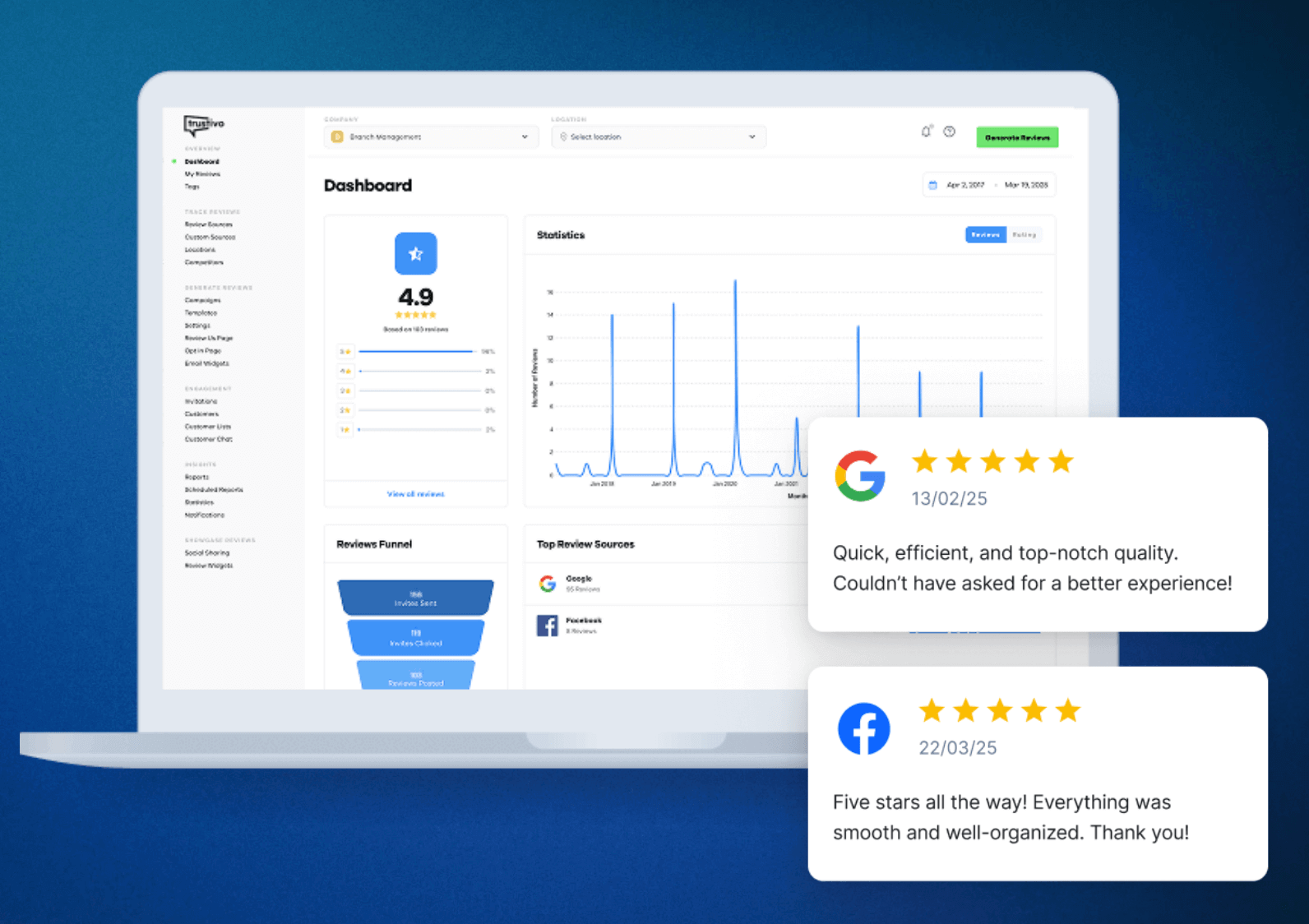
👉 Looking to add your Google reviews to your website?
This guide on how to add Google reviews on websites will walk you through a few simple ways to do it — even if you’re not super technical.
Whether you just want to feature one standout review or automatically display every new review that comes in, there are multiple ways to make it happen.
Some methods take only a few clicks, while others need a bit more setup depending on your site and how much control you’d like over the layout.
In this guide, we’ll walk through the most common ways to display your Google reviews and break down the best options for WordPress, Wix, Squarespace and custom-built websites.
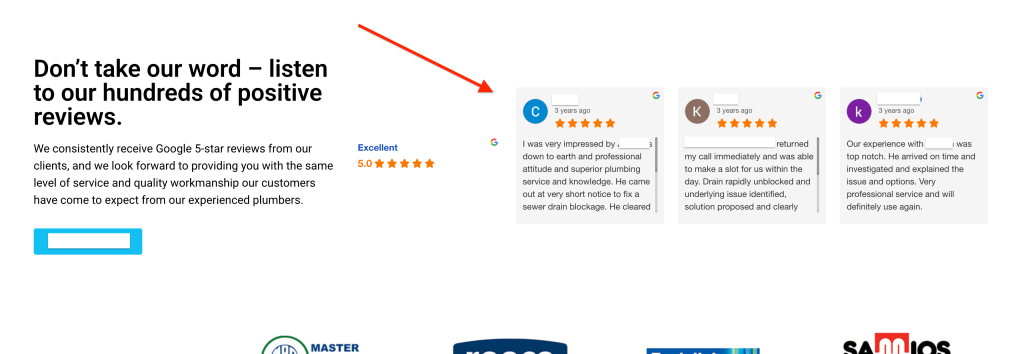
The main ways to show Google reviews on your site
Before diving into platform-specific methods, here’s a quick overview of the three most common ways to display Google reviews on your website.
⚙️ 1. Embed a single review (manual option)
You can manually add one review at a time to your site straight from Google Maps using a small HTML embed code.
It’s simple to do, but it won’t update automatically — so it’s best if you just want to feature one particular good review.
🔗 2. Use a widget or plugin (recommended for most websites)
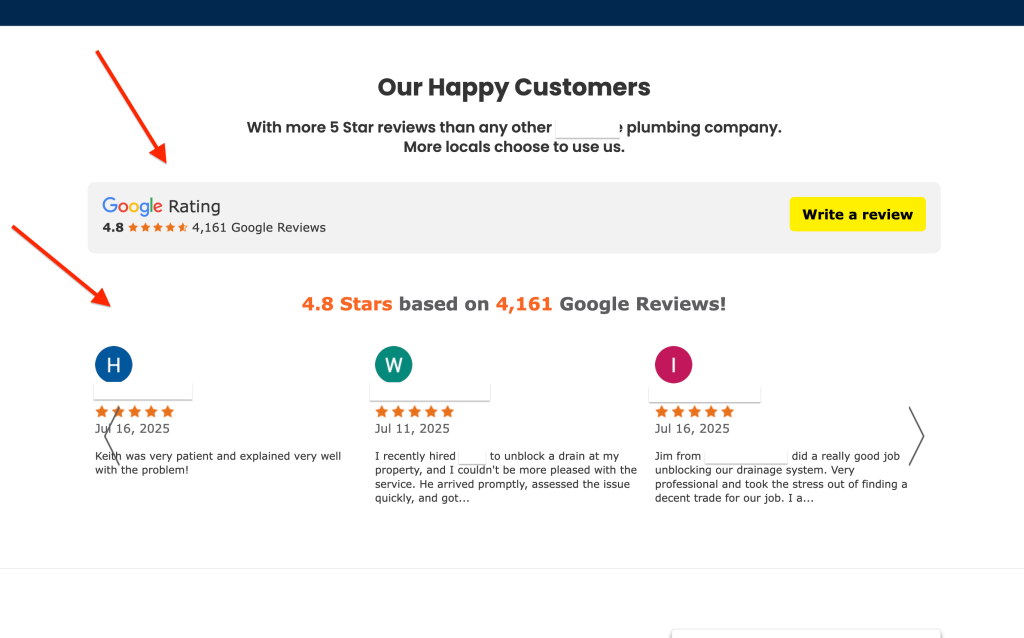
Widgets and plugins make it easy to display multiple reviews together — in a slider, grid, or small section on your site.
Most tools let you adjust the layout and design, and some even update automatically when new reviews come in.
There are free options available, but paid plans often include extras like auto-sync, advanced layouts, and branding removal.
👩🏻💻 3. Use the Google Places API (developer option)
If you’ve got access to a developer, the Google Places API gives you full control over how your reviews are shown.
You’ll need an API key and some coding knowledge, but it’s the most flexible method for completely custom setups.
✏️ Note:
None of the tools or apps in this guide are sponsored or paid placements.
They’re just the ones we’ve seen work well — and that we genuinely recommend based on ease of use, features and flexibility.
Best options by website platform
Let’s go through the top ways to display your Google reviews depending on what your website is built on.
✅ WordPress
👉 Recommended: Use the Trustindex plugin
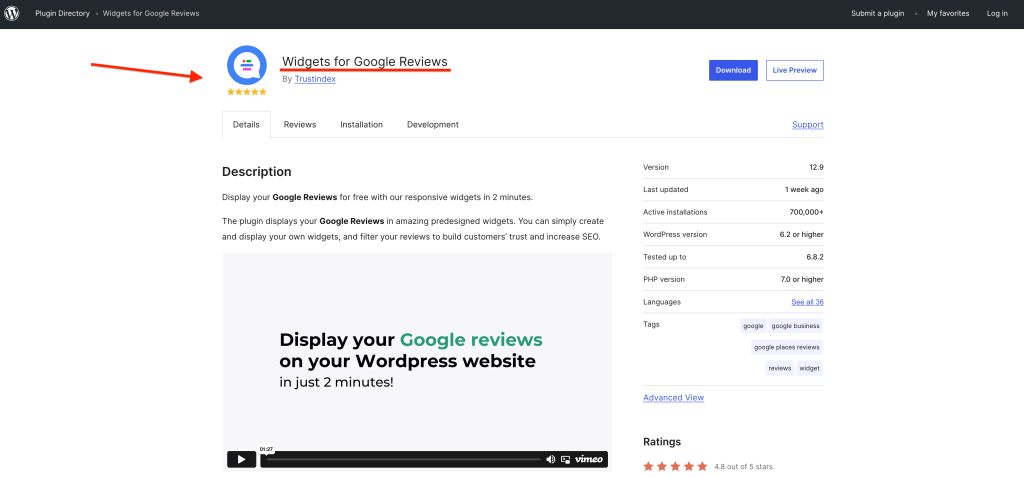
If your site runs on WordPress, one of the easiest ways to show Google reviews is with the Trustindex plugin.
It’s beginner-friendly, works without needing a Google API key, and can also display reviews from other platforms like Facebook and Yelp.
🔵Free version:
Lets you show your existing Google reviews, but you’ll need to manually refresh the feed to pull in new ones.
🔵Paid plans (from around US $65/year):
Add automatic syncing, advanced layouts, filters, branding removal and more customisation options.
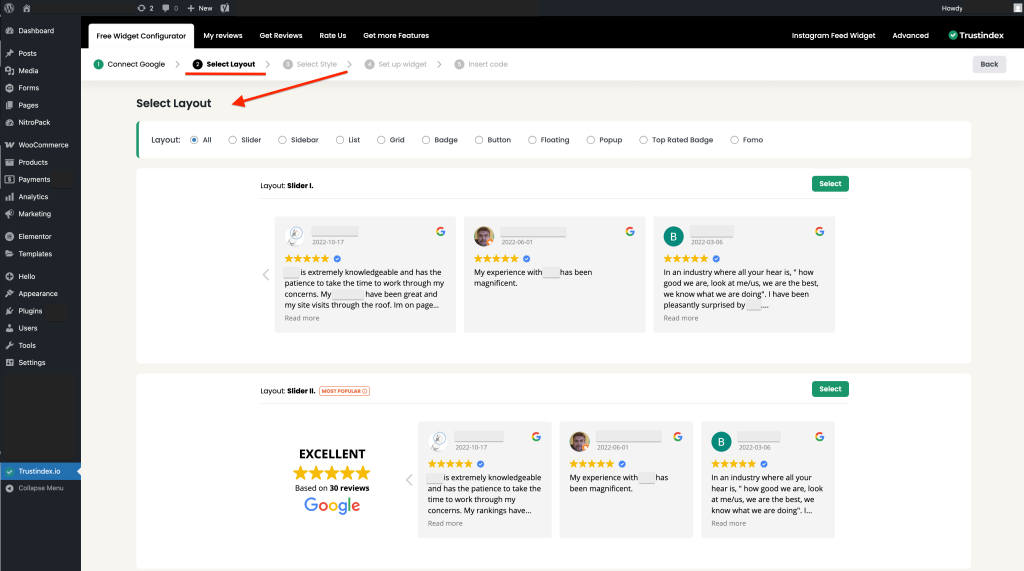
🔵Available layouts:
Sliders, grids, badges and carousels — all fully adjustable to match your website’s design.
⚙️Setup is simple:
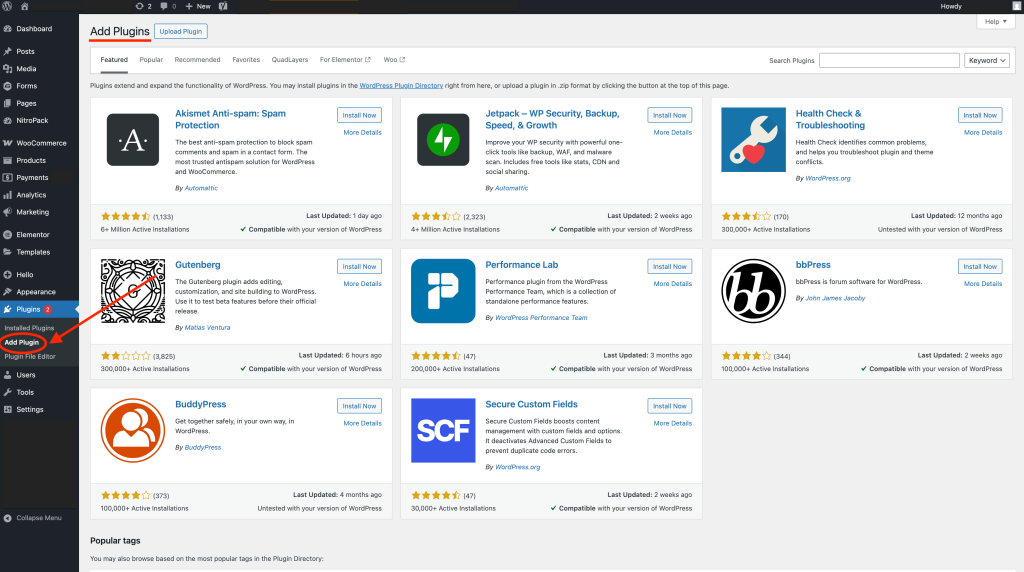
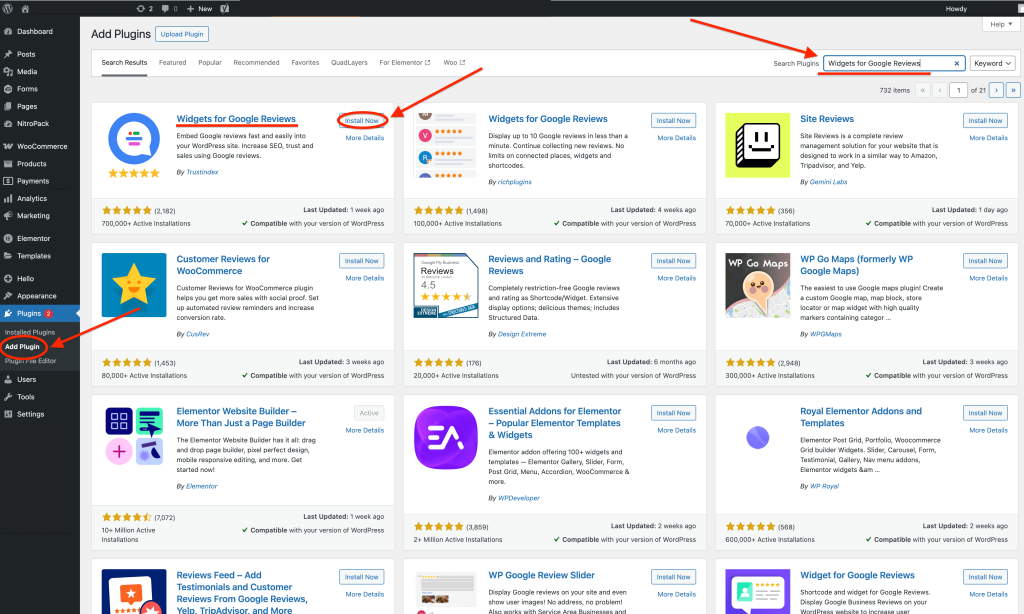
- Head to your WordPress dashboard, find “Add plugin” and find and install the Trustindex plugin.

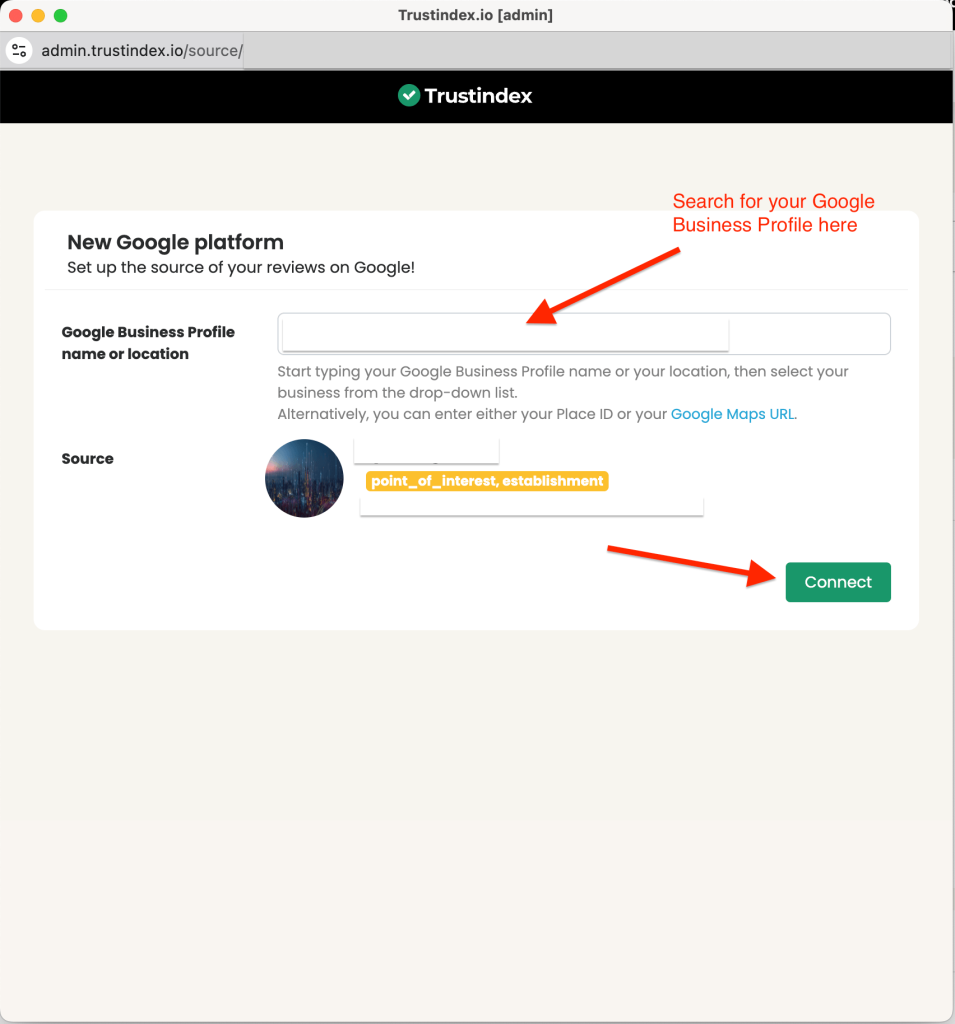
- Connect the plugin with your Google Business Profile or add your Google Place ID.

- Choose your preferred layout and style

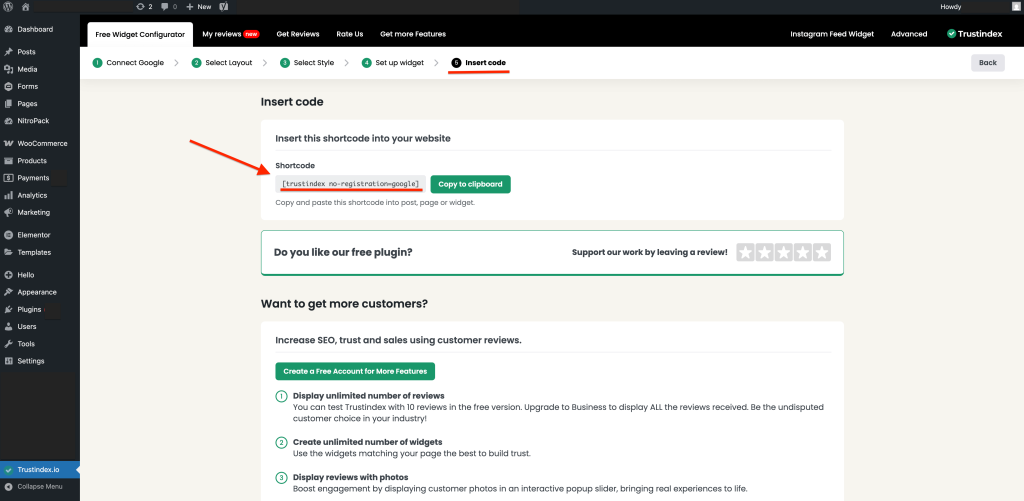
- Copy the shortcode and paste it anywhere on your site where you’d like the reviews to appear.

While there are plenty of other plugins that can do the job, Trustindex stands out for being user-friendly, flexible, and compatible with multiple review platforms.
Wix
👉 Recommended: Use the Google Reviews PRO app
If your website is built on Wix, one of the easiest ways to display your Google reviews is by using the Google Reviews PRO app from the Wix App Market.
It’s quick to install, fully customisable and requires no coding — making it perfect for small businesses or anyone who wants a simple setup.
🔵 Free version:
Lets you display up to 10 reviews on your site.
🔵 Paid plans (from around US $8/month):
Include automatic syncing for new reviews, branding removal, filters, and more layout flexibility.
🔵Layout options:
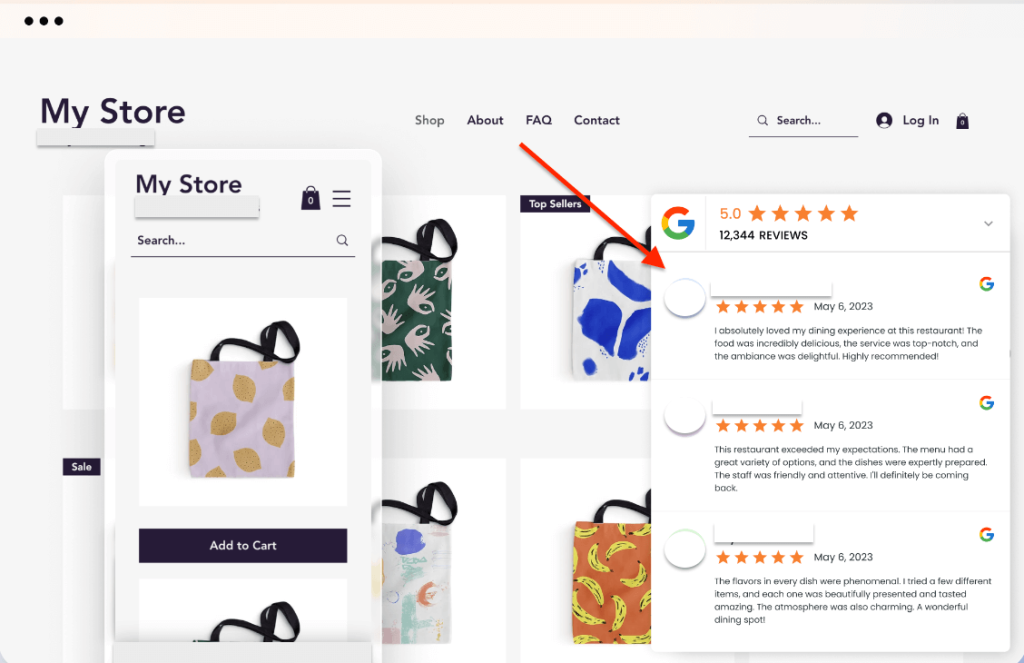
Choose from grids, sliders, carousels, or floating widgets — all of which you can easily style to match your site.
⚙️Setup is easy:
- Open the Wix App Market
- Search for Google Reviews PRO app
- Install the app.
- Connect your Google Business Profile to it
- Pick your preferred layout and position it anywhere on your website
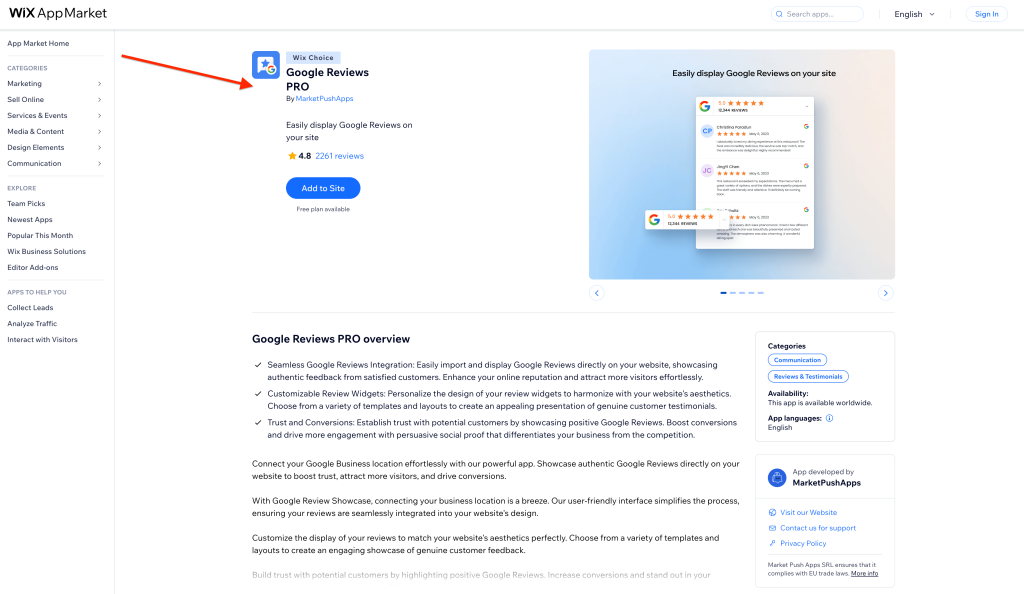
While there are other apps that can display your reviews on Wix, Google Reviews PRO is the one we recommend most to use — it’s reliable, highly rated and designed specifically for Wix users.
✅ Squarespace
👉 Recommended: Use the SociableKIT widget
Squarespace doesn’t offer any built-in plugins or direct integrations for Google reviews — but you can still add them easily using a SociableKIT widget.
The process is simple: you create and customise your widget on the SociableKIT website, then copy a small embed code and paste it into your Squarespace site using a Code Block.
The whole setup only takes a few minutes and doesn’t require any coding skills.

🔵Free version:
Lets you display a small number of reviews and includes SociableKIT branding.
🔵Paid plans (from around US $100/year):
Add automatic syncing for new reviews, branding removal, extra layouts, filters, and more control over design.
🔵Layout options:
Carousels, sliders, grids, and review cards — all simple to customise so they blend seamlessly with your website.
⚙️ Setup steps:
- Visit SociableKIT
- Create a Google Reviews widget
- Choose your layout and adjust the design to suit your site.
- Copy the embed code.
- In Squarespace, open the page where you want your reviews to appear.
- Paste the code into a Code Block, then save and publish.
You can also create widgets for other review websites, like Yelp or Facebook, and embed them wherever you’d like.
✅ Custom websites
👉 Recommended: Use the Google Places API (developer option)
If your site has been custom-built and you’ve got a developer on hand, the Google Places API gives you the most freedom to display reviews however you like.
It connects straight to your Google Business Profile, pulling reviews in automatically so you can design a layout that fits perfectly with your site’s look and feel.
The setup only needs to be done once but does involve a bit of coding knowledge.
📌 Note: If a developer originally built your website, it’s easiest to get them to add this for you — they’ll already understand your site’s structure.
If that’s not possible, any competent web developer should be able to set it up as a quick one-off task.

🔵Best for: Businesses or teams that want total creative control
🔵What you’ll need: An API key from Google Cloud
🔵Flexibility: You can build your own feed or layout using HTML, CSS, or JavaScript
🔵Ongoing use: The Google Places API has monthly usage limits and may charge depending on the number of requests
⚙️ Setup steps:
- Head to the Google Places API dashboard.
- Create a new project — or select one you already have.
- Turn on the Places API feature.
- Generate an API key for your project.
- Add the key to your website code so it can pull your live review data.
- Design and style how your reviews appear on the front end of your site.
🎉 And now your reviews are live!
Once your reviews are displaying on your website, they act as powerful social proof — helping new visitors trust your business faster and driving more enquiries or sales.
If you’d like those glowing reviews to keep coming in automatically, Get More Reviews can take care of that for you.
Our system handles the follow-up process, sends review requests by SMS and email automatically, and helps your Google rating grow steadily over time — without any manual effort.
👉 Start your free 30-day trial today and see how easy it is to turn happy customers into new reviews.
Frequently asked questions
Can I embed just one Google review?
Yes — but you’ll need to do it manually.
Start by finding your business on Google Maps, then scroll to the review you’d like to feature.
Click the three dots (⋮) next to it and choose “Embed review.”
Copy the HTML code that appears and paste it into your website — anywhere that allows you to add custom HTML.
This works on most website builders but won’t automatically refresh or rotate through other reviews.
⚠️ Need help finding your reviews first? Check out our guide: How to find your Google reviews.
What if I don’t have many reviews yet?
If your profile only has a couple of reviews, it can help to wait until you’ve built up a few more before embedding them.
To speed things up, you can use a review automation tool like Get More Reviews, which sends out review requests by email and SMS automatically.
That way, you’ll always have fresh, genuine feedback to showcase — and your Google rating can grow faster over time.
Will adding reviews to my site slow it down?
Not usually. Most review widgets and plugins are lightweight and designed to load quickly.
If you’re concerned about site speed, choose a reputable tool that supports caching, lazy loading, or manual refresh options to keep performance smooth.
Can I show reviews from other platforms (like Yelp or Facebook)?
Yes — many tools mentioned here (like Trustindex and SociableKIT) also support other review sources.
Depending on your setup, you can either add separate widgets for each platform or combine your Google, Facebook, and other reviews into a single feed.