👉 Ready to start getting Google reviews for your business?
Before you can, you’ll need to make sure everything is set up correctly.
Having great Google reviews doesn’t just improve your reputation — they help build trust, boost your visibility in local searches and make your business stand out on Google Maps.
To get these results, your Google Business Profile (GBP) needs to be properly created, verified and ready to receive reviews.
There are a few simple steps involved — from setting up your profile to sending your Google review link with customers.
In this step-by-step guide, we’ll walk you through exactly how to set up Google reviews from start to finish, and what to do once you’re ready to start collecting feedback.
You’ll learn:
✅ How to make and verify your Google Business Profile
✅ How to get a Google review link
✅ How to get a QR code for your Google reviews
✅ What to do next (to start getting more consistent reviews)
Let’s dive in.
Step 1: Create + verify your Google Business Profile
To start getting Google reviews, you’ll first need a Google Business Profile (GBP).
This is the listing that appears when people search for your business on Google Search or Google Maps — and it’s where all your reviews are shown.
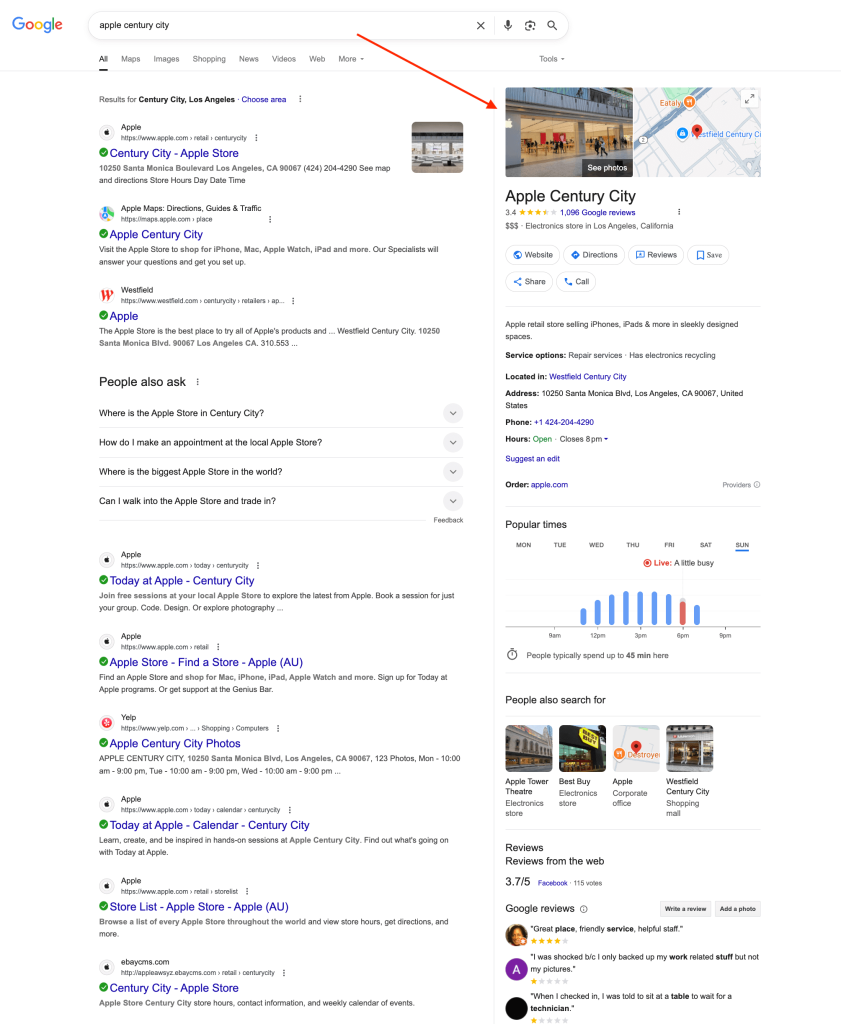
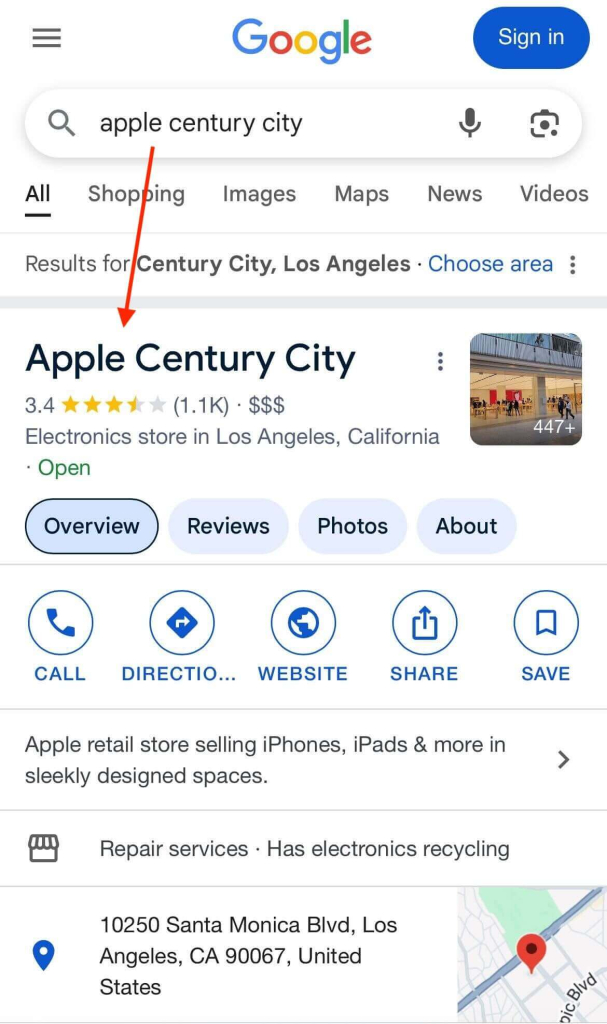
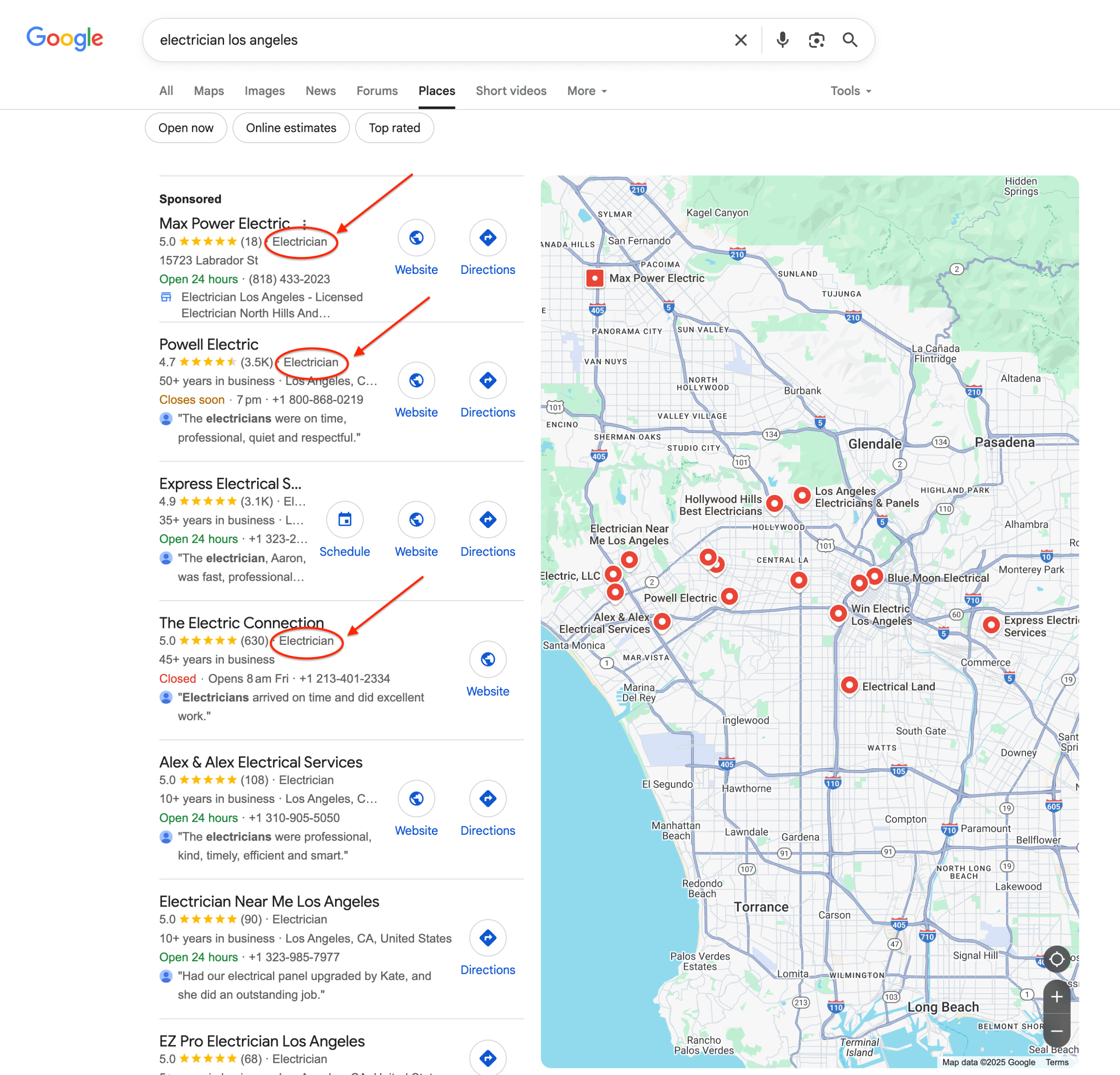
✅ Already have a Google profile?
Perfect — you can move straight on to Step 2.
❌ Not sure if you’ve got a Google Business Profile yet?
The easiest way to check is by searching your business name and location on Google.
You might need to try a few variations or include the service or product name, since your listing name isn’t always identical to your business name.
👉 If a profile appears (like the ones shown above) with your contact details, address, and other info, it means you likely already have one — you may just need to claim ownership. We go through how to check that in more detail in our guide: How to find your Google reviews.
👉If no profile exists, follow the next steps to create and verify a new Google Business Profile.
How to create and verify a new Google Profile:
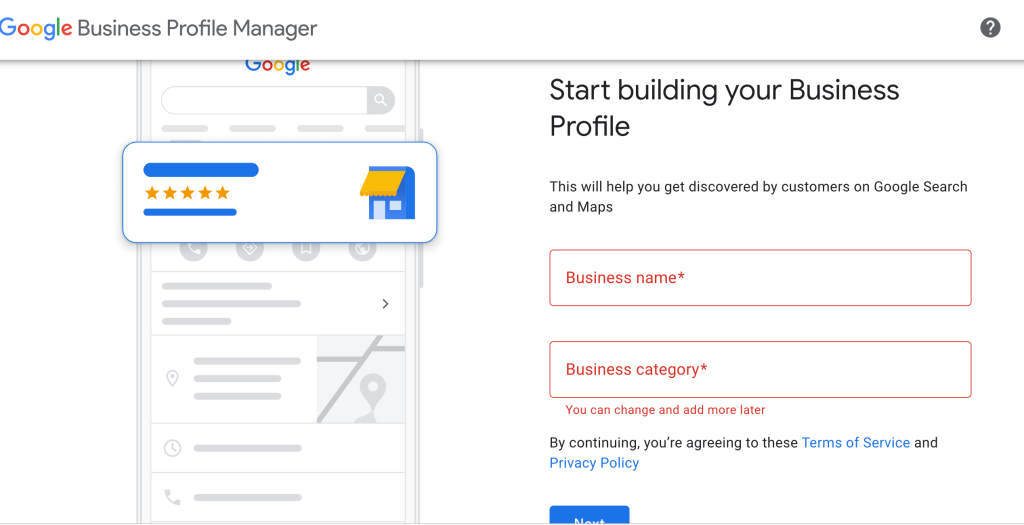
- Go to Google Business Profile website (business.google.com) and click “Get Started”.
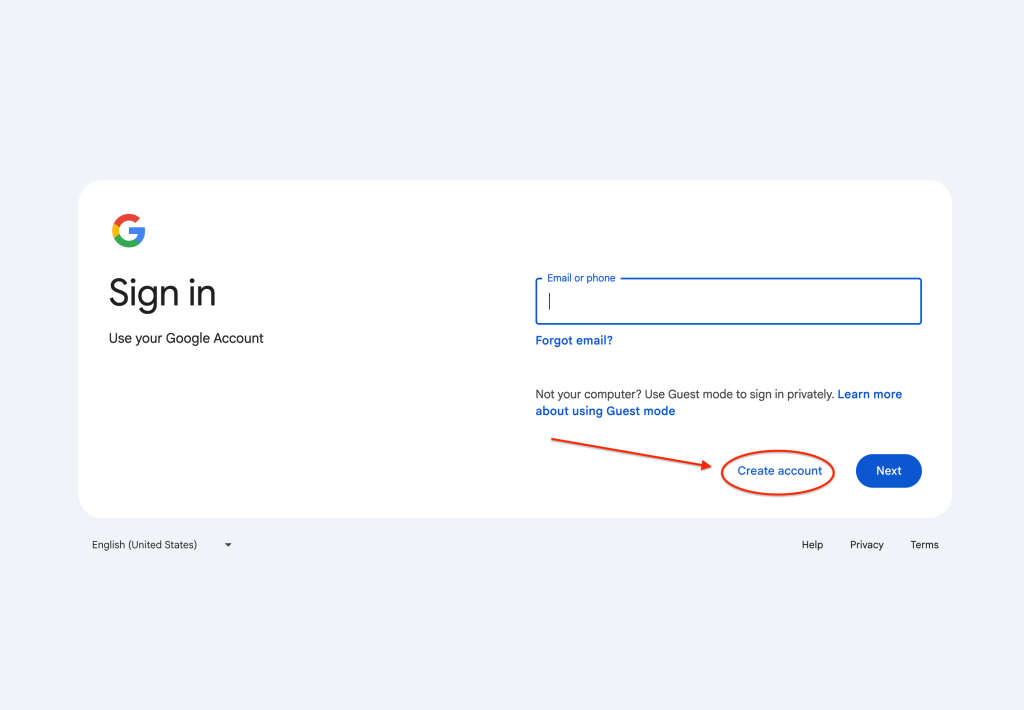
You’ll need to log into your Google account before you can set up your profile.

👉Don’t have a Google account yet?
You can quickly create one here before continuing.

- Once you’ve clicked to start the setup, Google will guide you through the setup process of your Google Business Profile.
You’ll begin by entering your business name and selecting the category that best matches what you do.
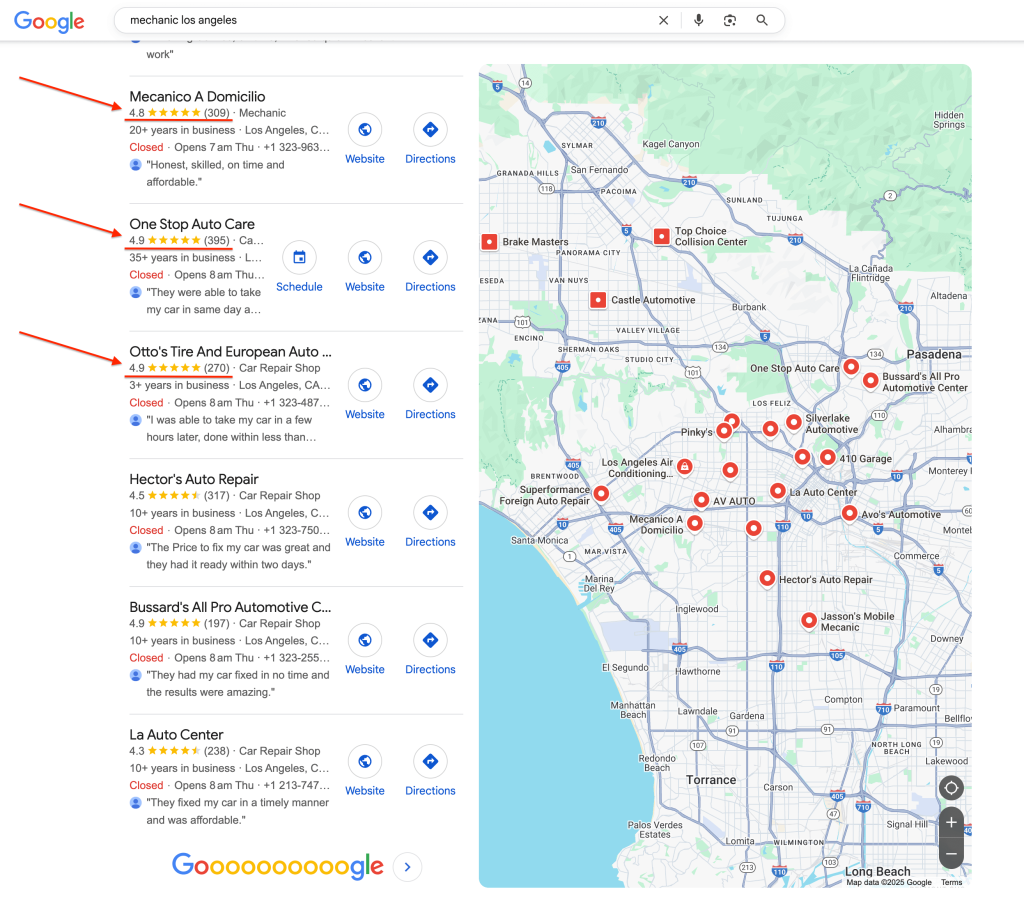
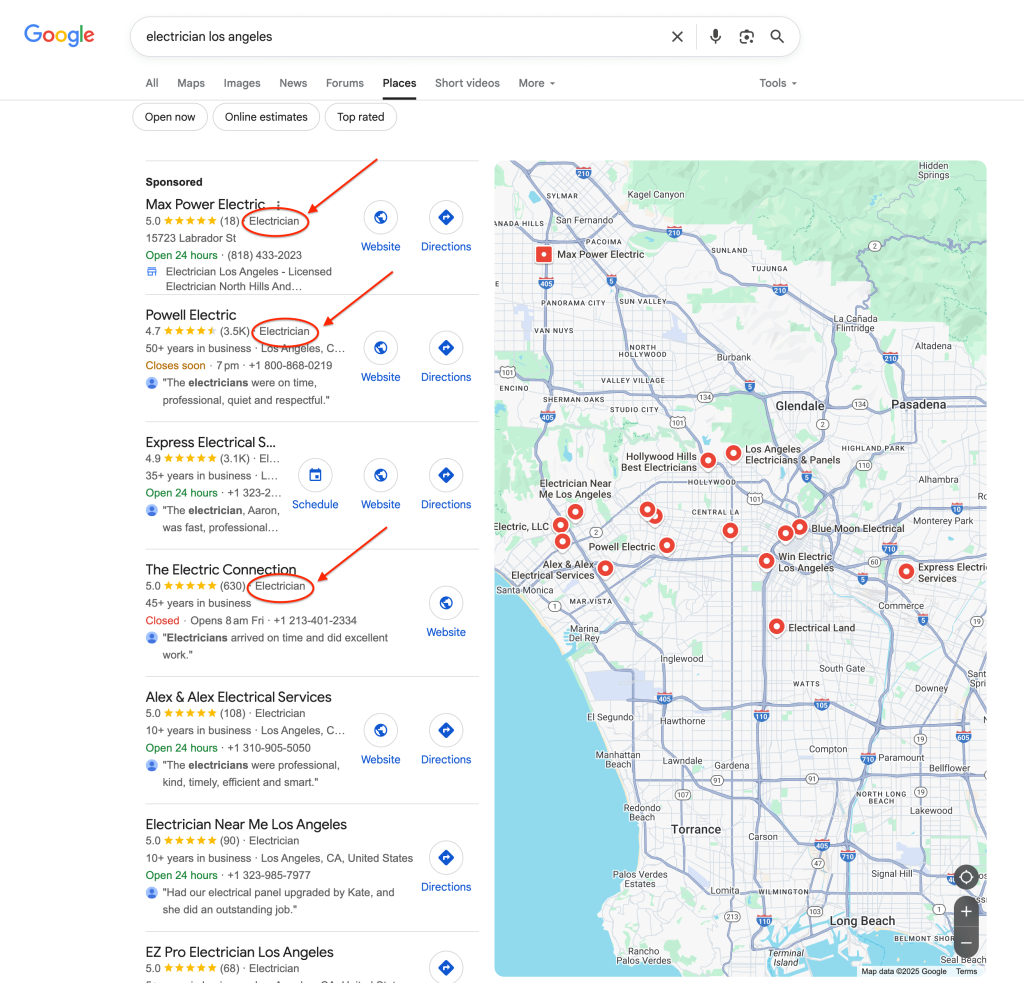
✏️ Tip: For better visibility, choose a category that accurately fits your business — and check what category your top competitors are using too.This helps Google group your listing with other relevant businesses and improves your chances of showing up when people search for your type of product or service.
Example of where the business category appears on a Google Business Profile. - Continue following the prompts to fill out your business details and Google Profile — including your address (or service area if you don’t have a physical location), contact info and opening hours.
- Finally, verify your business.
Google may send a code by postcard, email or phone, depending on your chosen method.
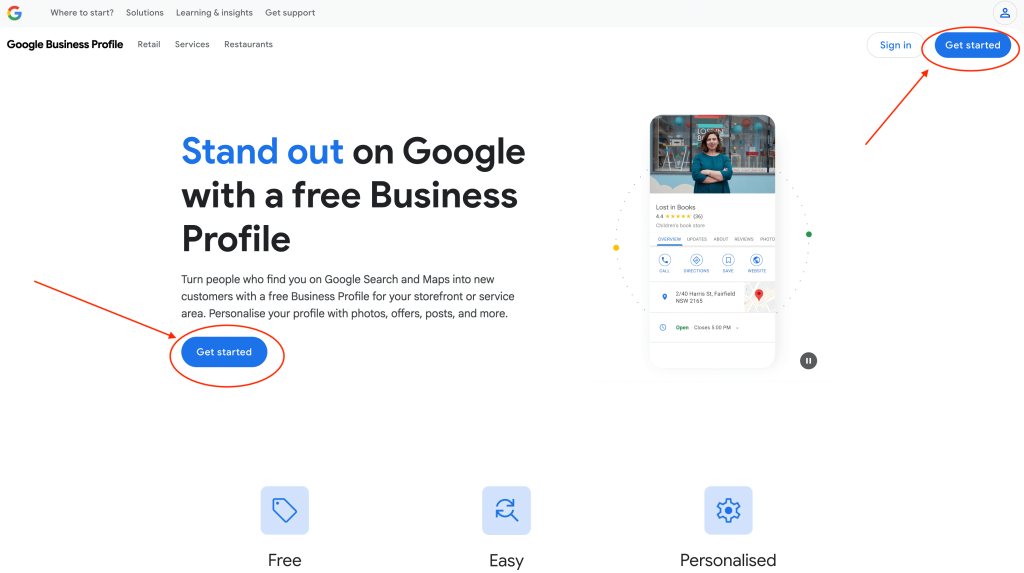
📌 Note:
Your Google Business Profile won’t appear publicly until it’s verified — so make sure to complete this step before moving on to Step 2.
Step 2: Find + send your Google review link
Once your Google Business Profile is up and verified, you can start collecting reviews.
To make it easier for customers to leave one, you’ll want to grab your unique Google review link — this is what directs people straight to your review form.
How to get a Google review link:
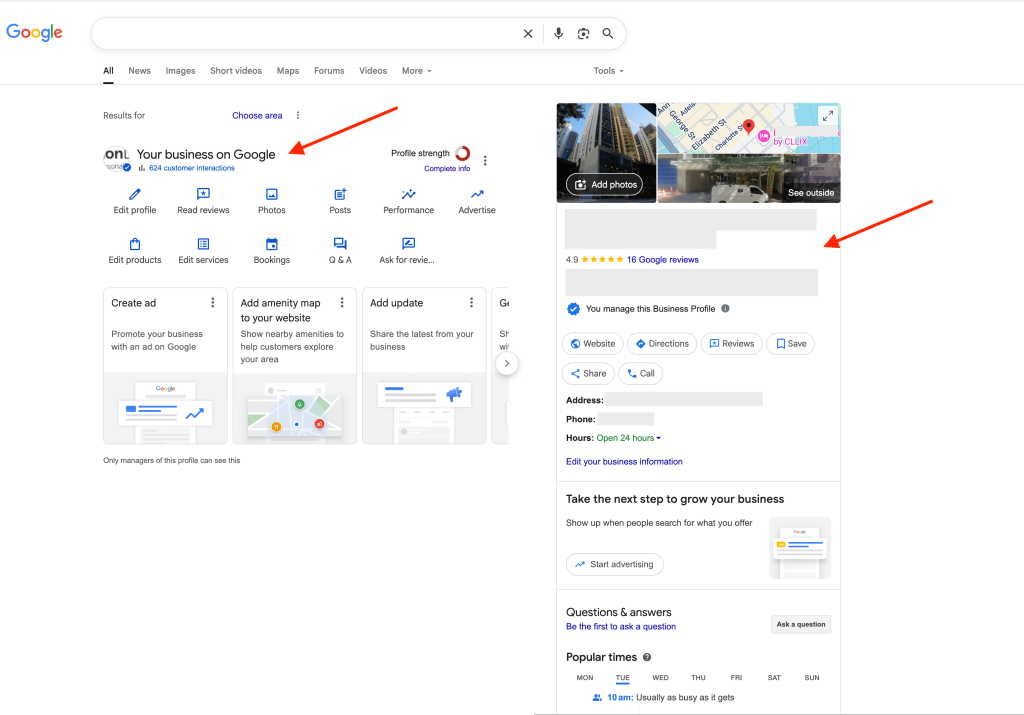
- Open your Google Business Profile. You can do this by searching for your business on Google or in Google Maps.
Make sure you’re logged into the Google account that manages your business profile.

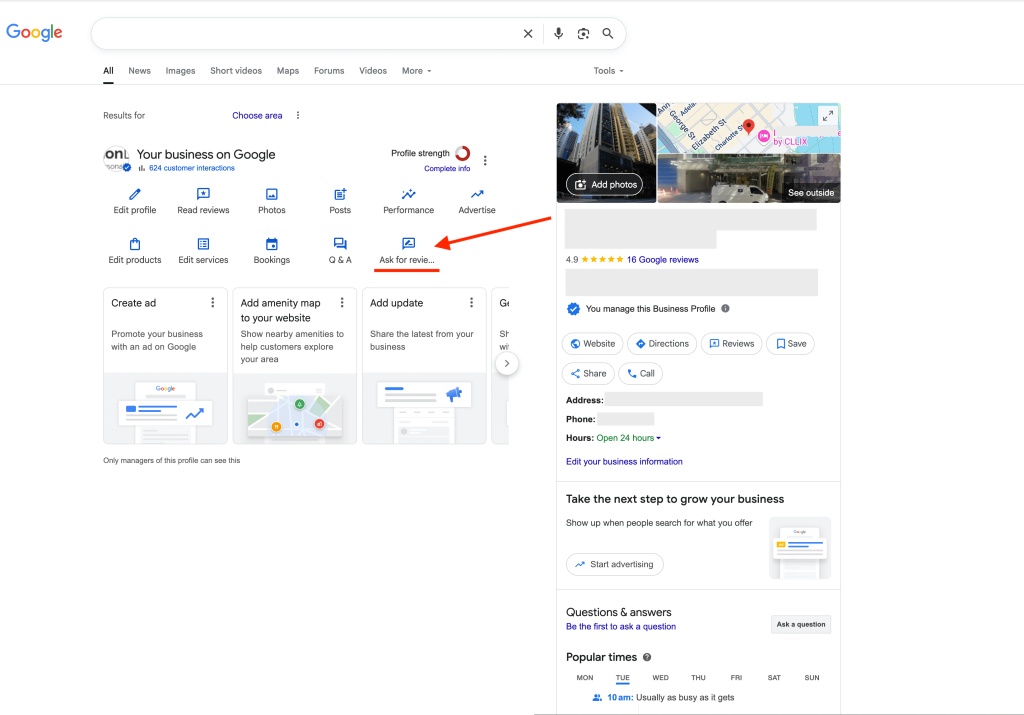
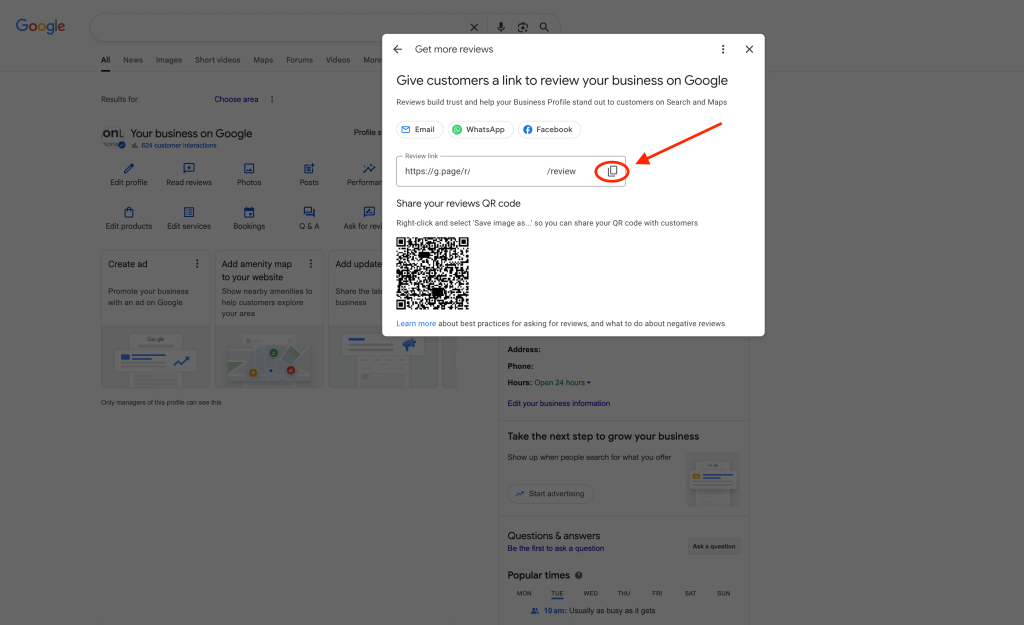
- In your profile panel, select “Ask for reviews”.
- A pop-up will appear showing your review link and QR code. Click the copy icon next to the link to save it.

How to send your Google review link:
Once you’ve copied your review link, you can send it to customers in a few simple ways:
- Text
- Social media profile
- Printed materials – receipts, signs or Google review cards
Before sending, double-check that your link works correctly — then share it using whichever method suits your business best.
Remember:
Now that your Google Business Profile is set up and ready to start collecting feedback, there are a few useful things to keep in mind.
✅ Know where to view your reviews
If you ever want to see what customers have said, or manage how you respond, we’ve created a full guide on this for business owners and individuals: How to find your Google reviews.
✅ Stay on top of new reviews
Once your profile is live, reviews can start coming in at any time. Keeping an eye on them shows that you’re engaged and care about customer feedback.
Responding, whether the review is positive or negative, helps build trust and signals to Google that your business is active.
Need some guidance on what to say when replying?
Check out our article: How to respond to Google reviews.
It’s focused on replying to negative reviews but includes tone tips, examples and advice for handling both positive and negative feedback professionally.\
Want to get more reviews on autopilot?
Asking customers for reviews manually sounds easy — but when things get busy, it’s usually the first task that slips through the cracks.
And even when you do remember, it can feel awkward to ask or time-consuming to follow up with.
That’s where Get More Reviews makes life easier.
Our platform automatically helps you collect more genuine 5-star reviews — without you needing to chase customers or follow up with customers yourself.
Once you’ve set it up, it runs quietly in the background, sending out review requests by SMS and email after each job, purchase, or booking — and following up automatically if the customer doesn’t respond.
You can use it to collect reviews on Google, Facebook, Yelp, and many other popular platforms like Tripadvisor, Trustpilot, and Zillow — giving your business a simple, hands-off way to build trust and stand out online.