👉 Ever left a Google review and then thought, “Wait — where do I actually see all the reviews I’ve written?”
Or maybe you’re a business owner trying to keep track of all the new reviews appearing on your Google Business Profile.
Either way, finding your Google reviews isn’t always as obvious as it should be.
In this quick guide, we’ll show you exactly how to find your Google reviews — whether you’re:
✅ A regular user wanting to see the reviews you’ve written
✅ Or a business owner wanting to check what customers are saying
We’ll also answer common questions like:
🔵 Where can I find my Google reviews?
🔵 Can I search through reviews I’ve written before?
🔵 Where can I see my reviews on Google as a business?
Let’s make it easy, whether you’re on desktop or mobile, business or personal, this guide will walk you through exactly where to go and what to do.
For personal accounts (regular users)
If you’ve ever written a review on Google and want to look back at what you’ve posted — or see your full history of reviews — you can find them easily once you know where to go.
📱 On mobile (using the Google Maps app):
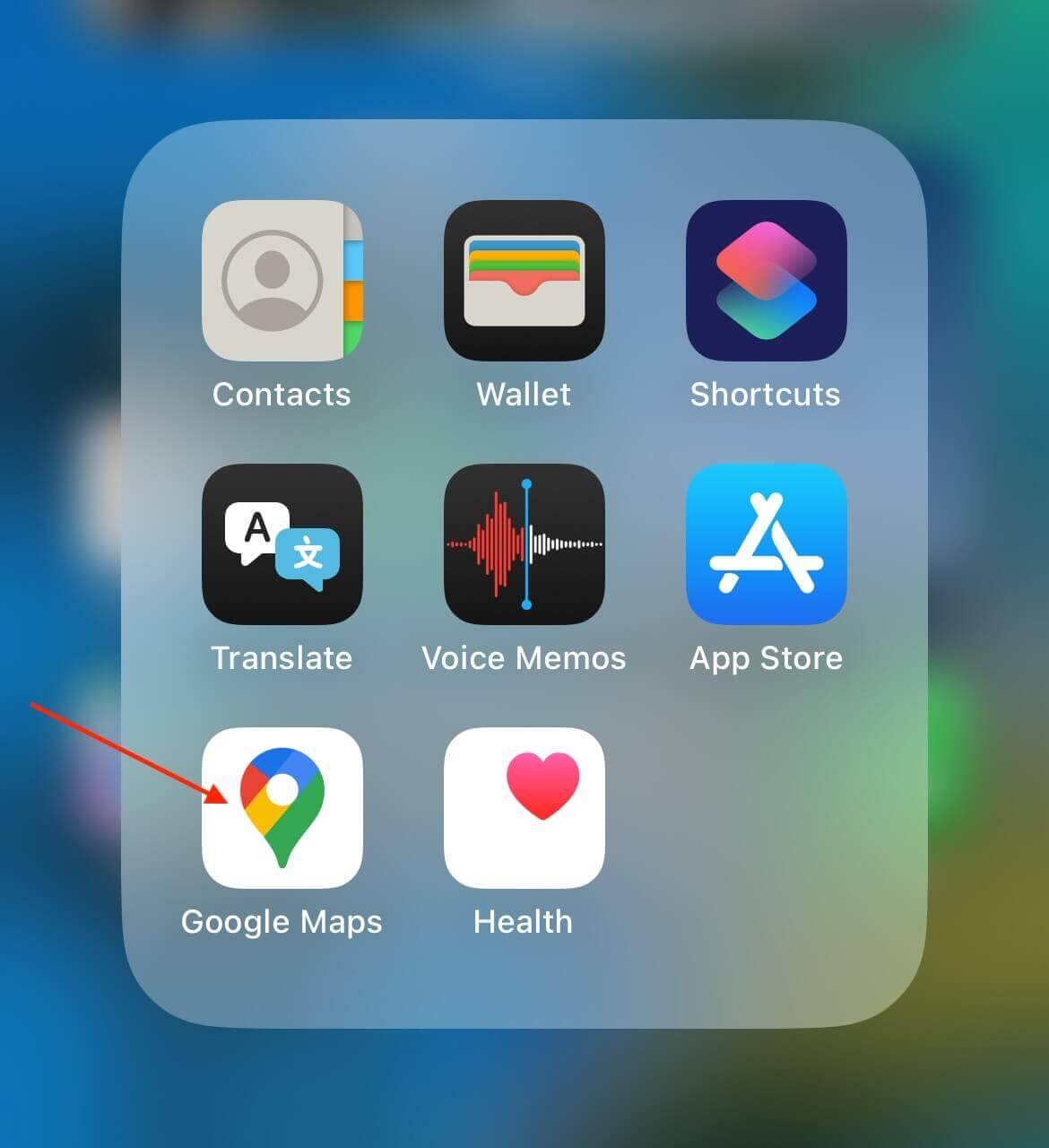
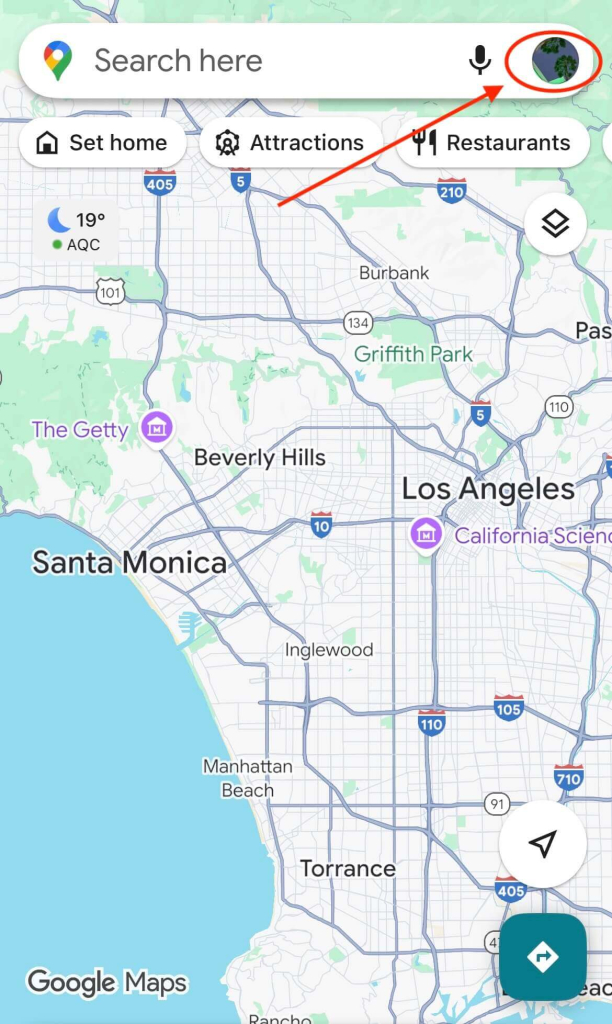
- Open the Google Maps app on your phone.

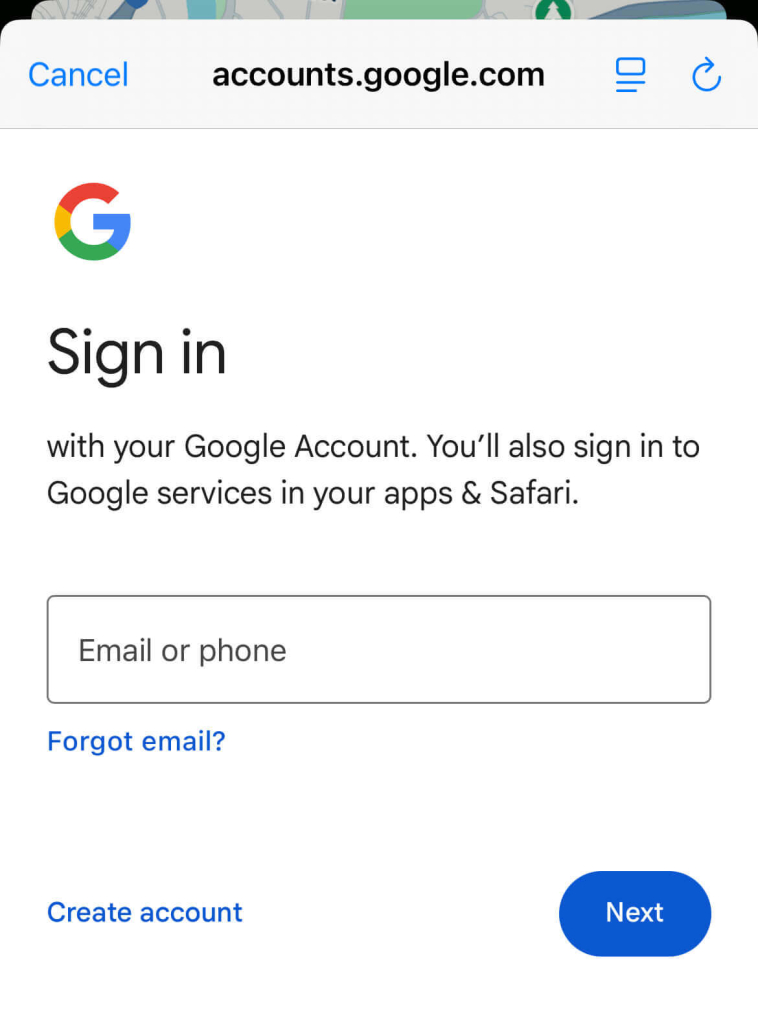
- Sign in with the Google account you normally use for leaving reviews (if not logged in already).

- Tap your profile photo in the top-right corner.

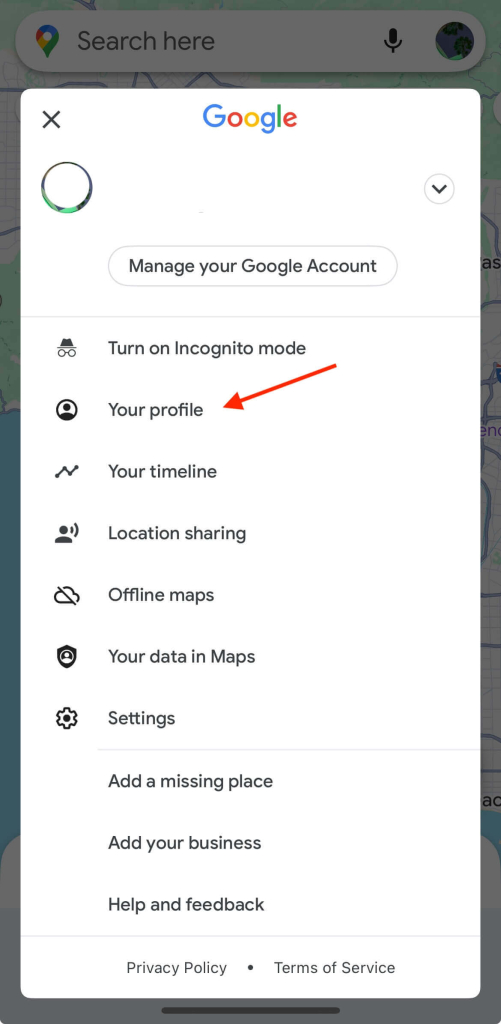
- Choose “Your profile”.

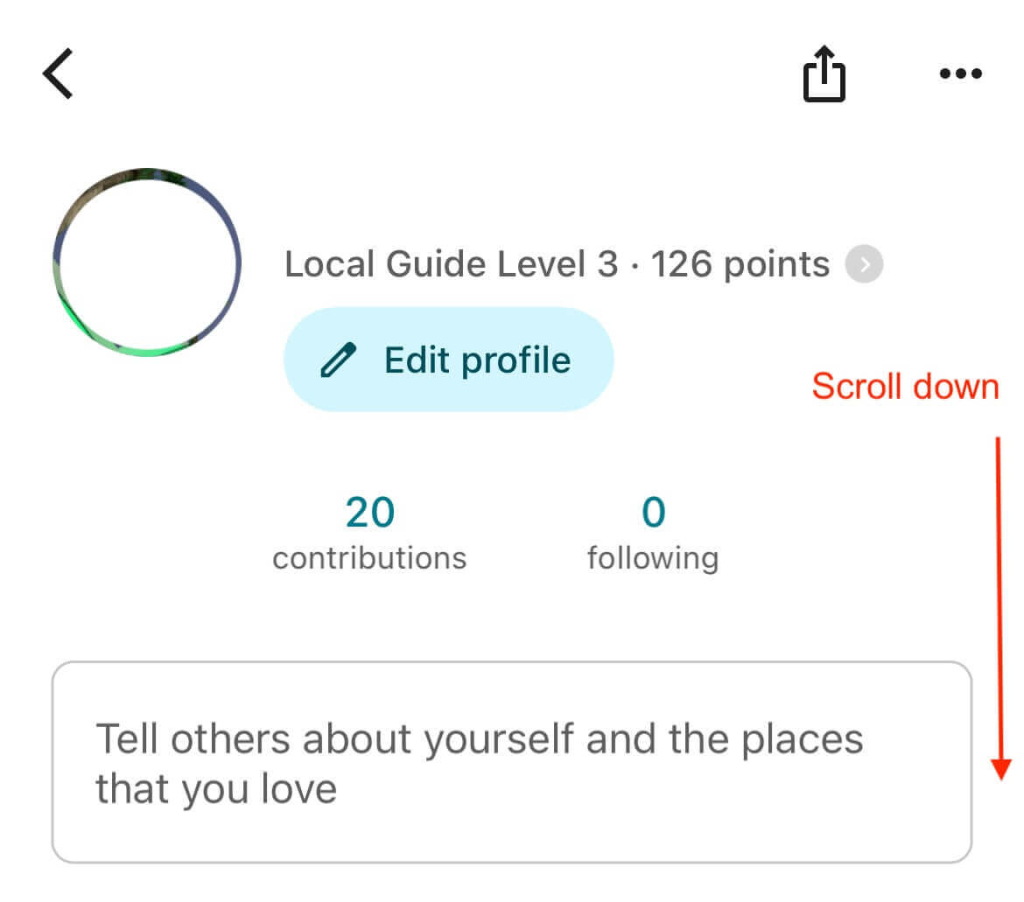
- Scroll down to the “Reviews” section — here you’ll see every review you’ve left, starting with the most recent at the top.


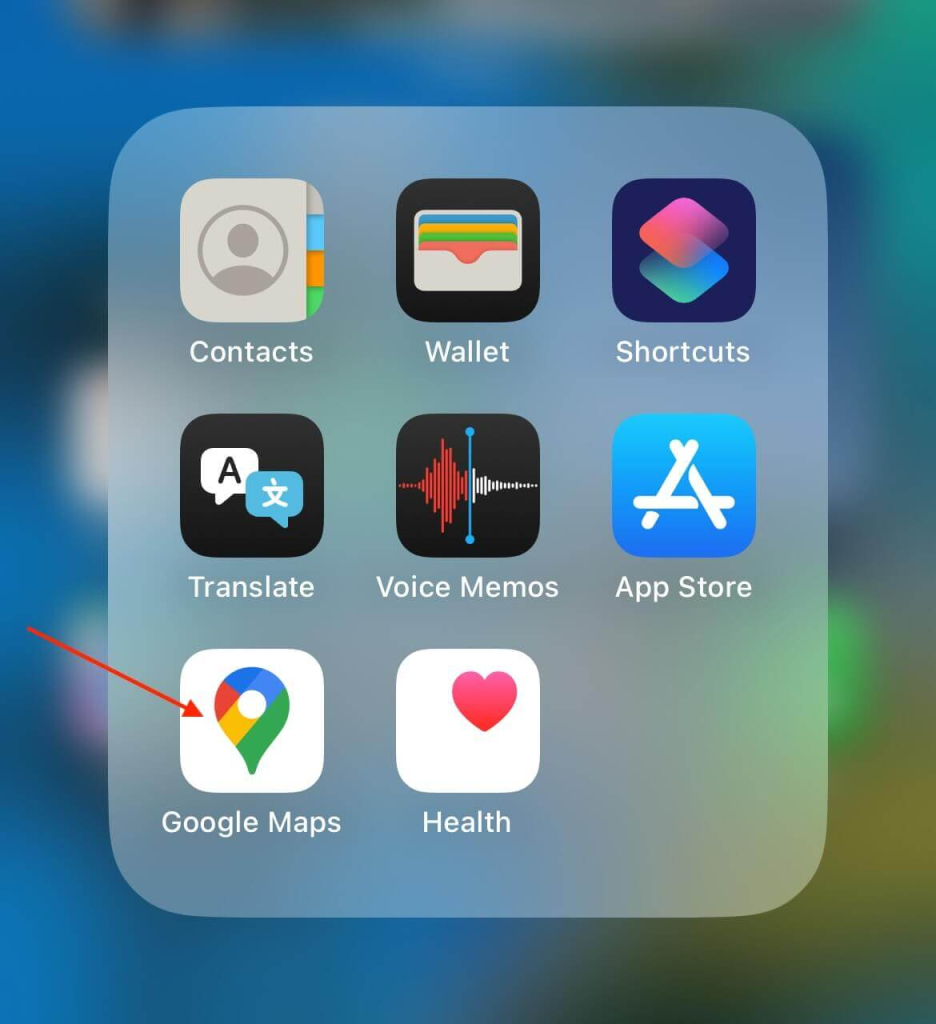
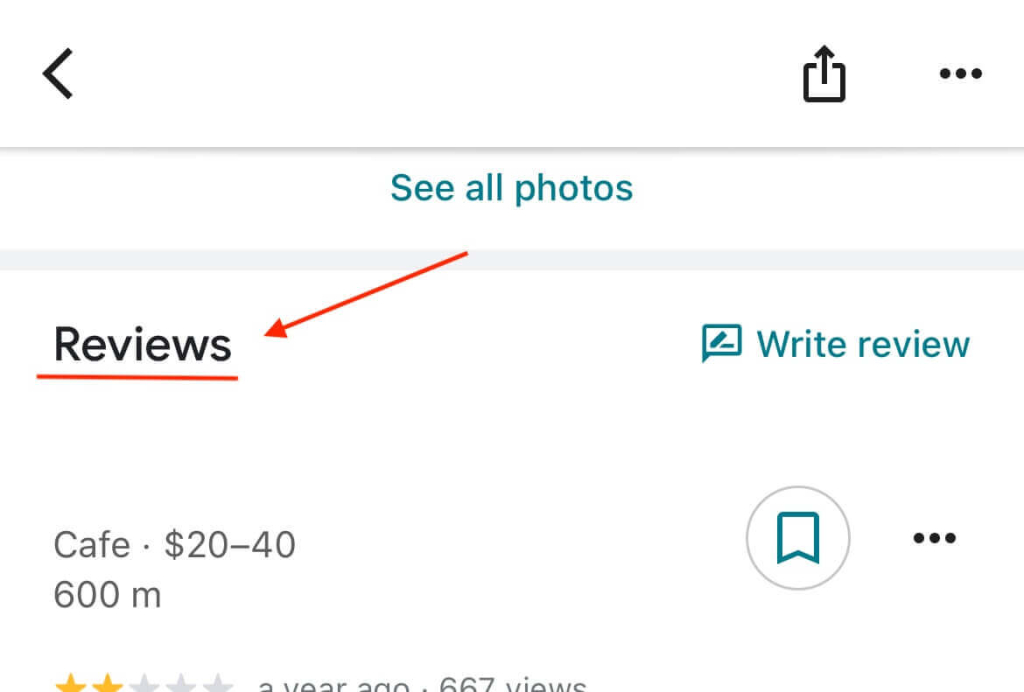
📌 Note: If you’re on mobile but don’t have the Google Maps app, follow the desktop steps below instead — they work the same through your browser on your phone.
💻 On desktop:
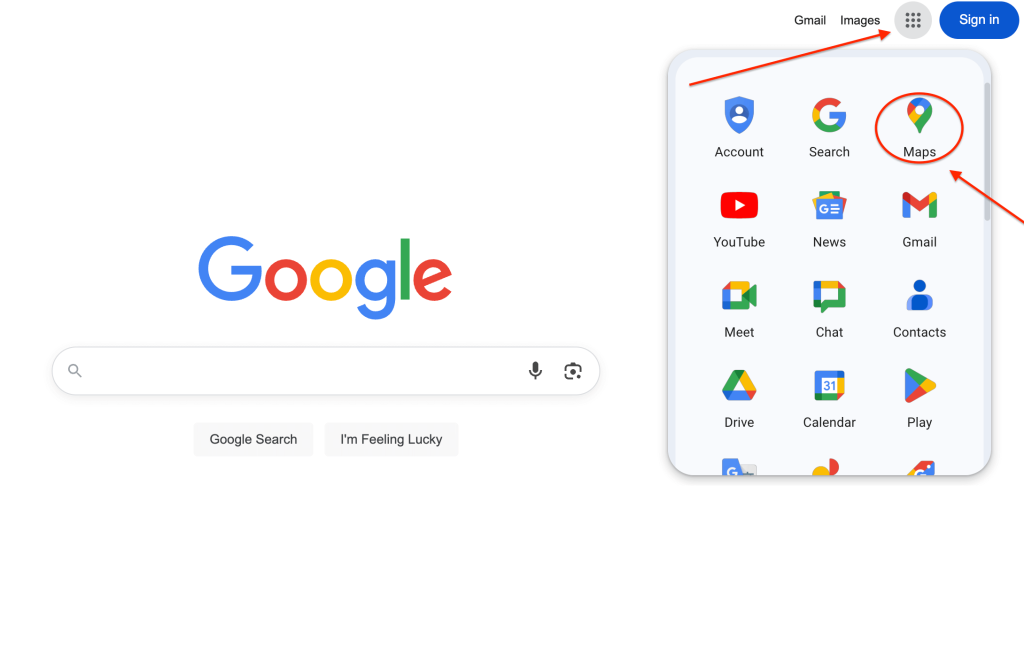
- Head to Google Maps.

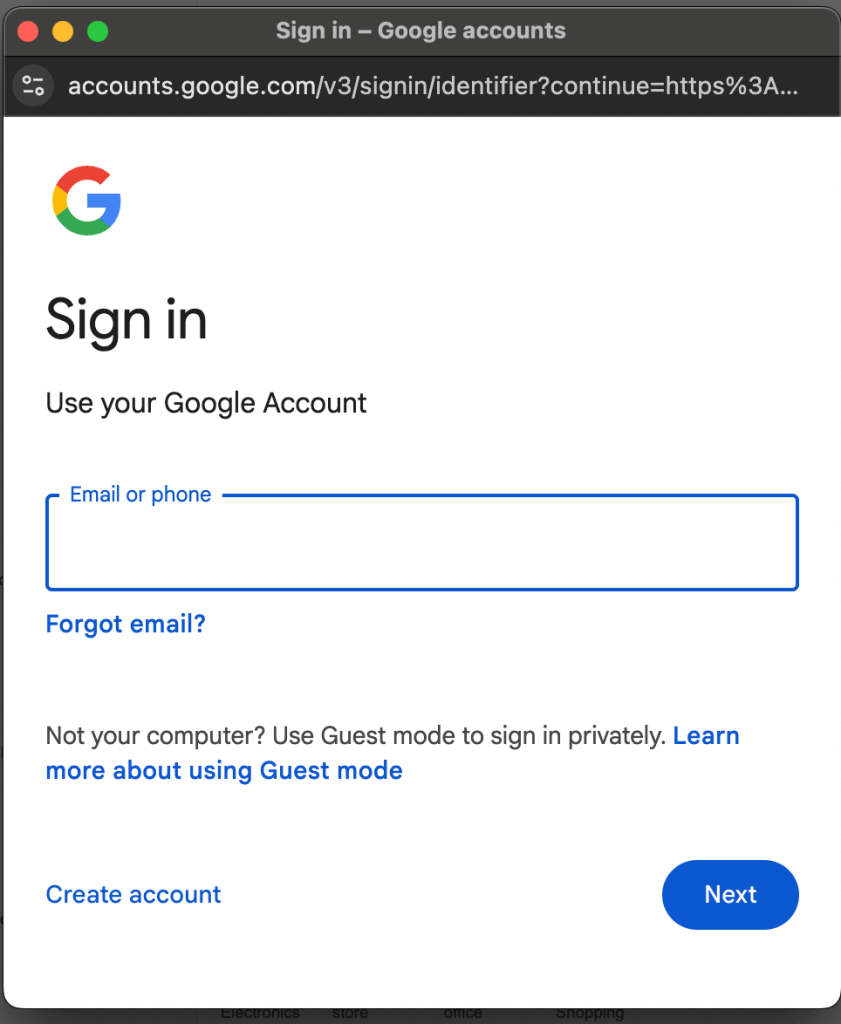
- Log into the Google account you use when leaving reviews (if you’re not already signed in).

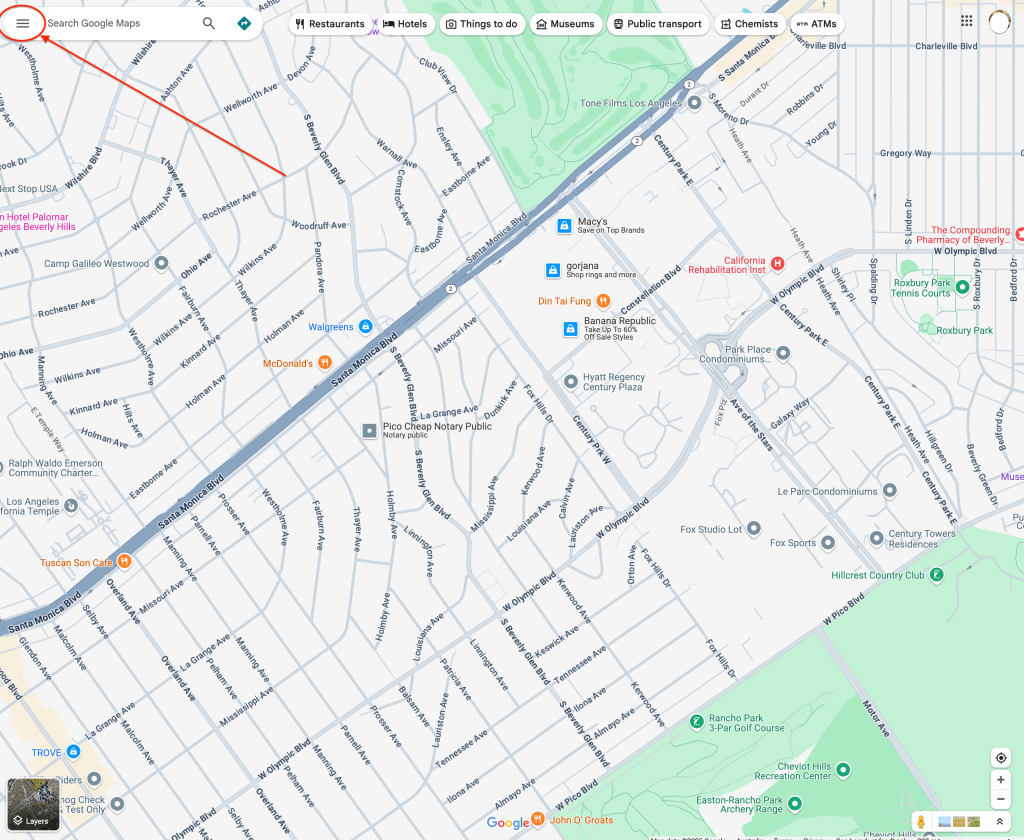
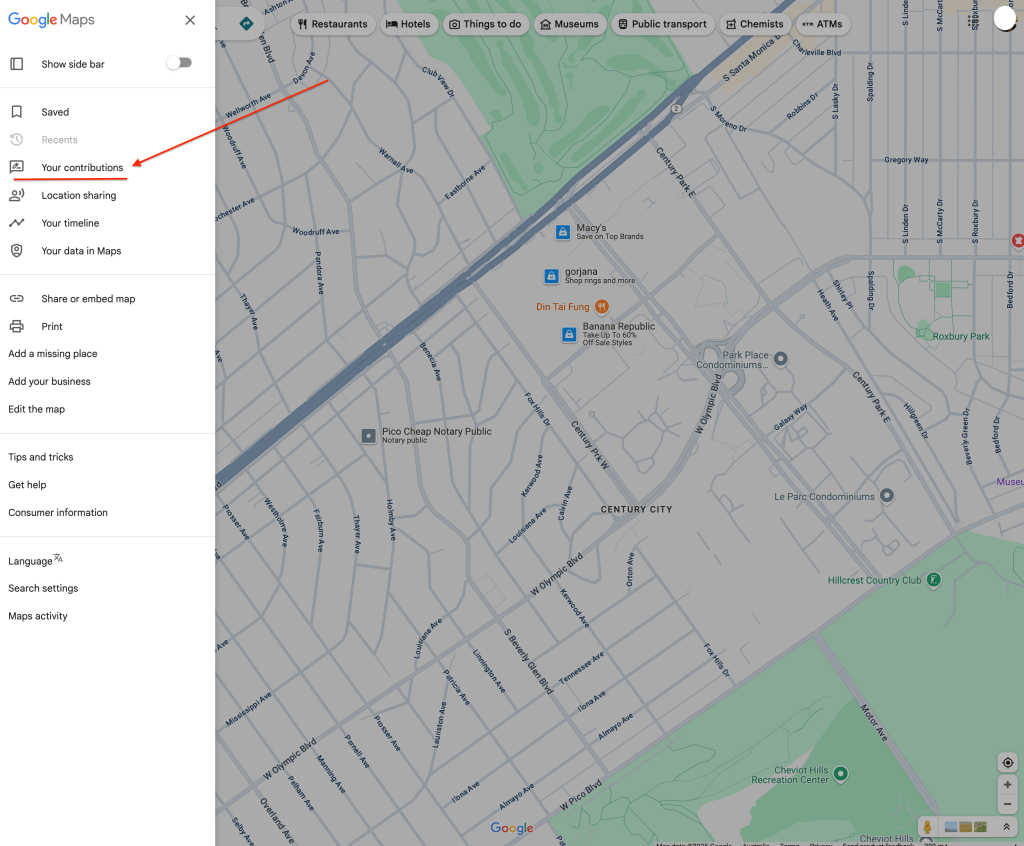
- Click the menu button (☰) that’s in the top-left corner.

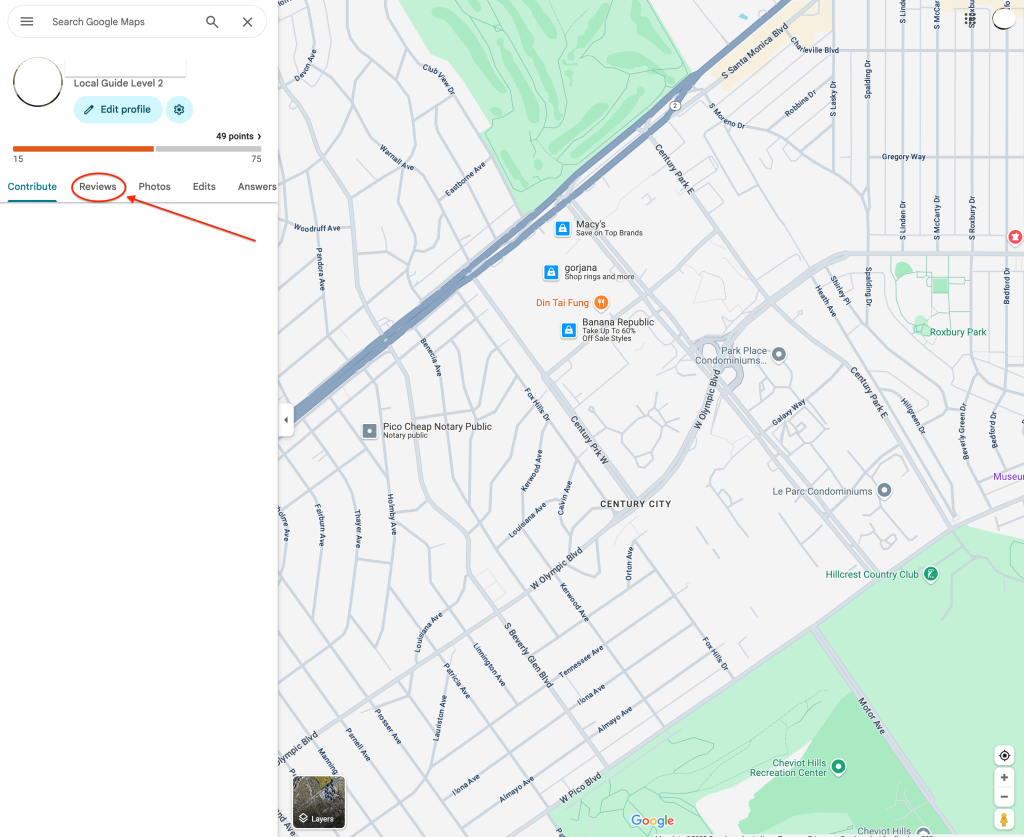
- Choose “Your contributions”.

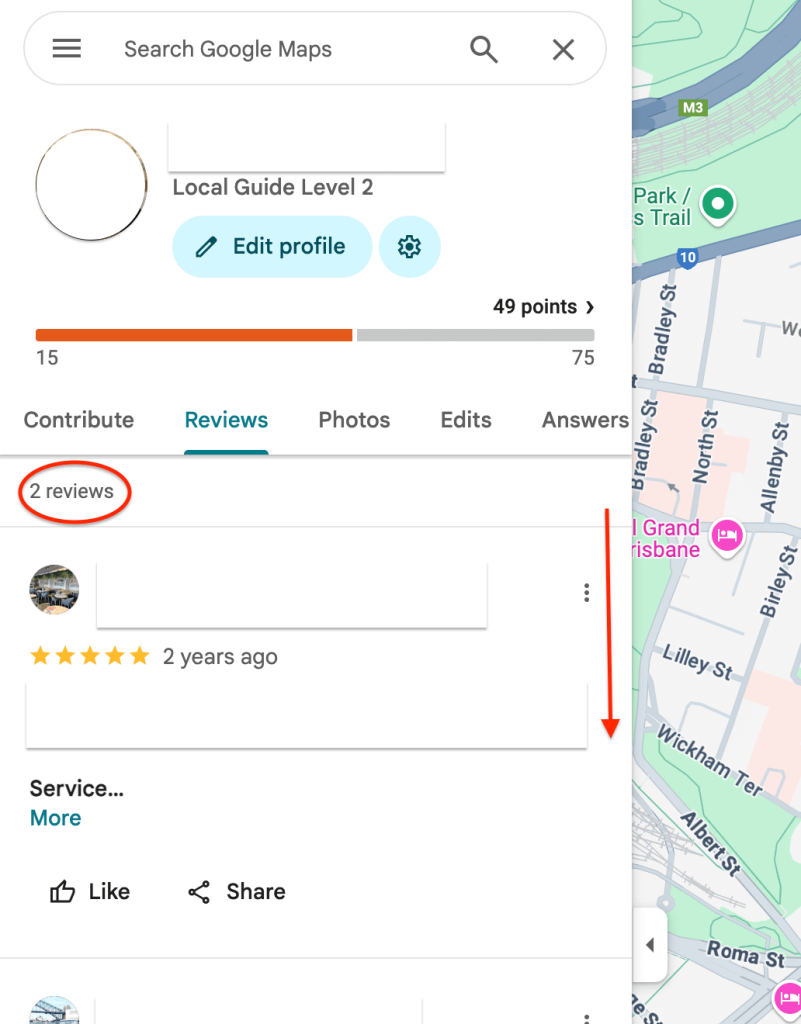
- Select the “Reviews” tab.

- Scroll down to see all the reviews you’ve written — your most recent ones will appear first

📝 Want to delete or edit one of your reviews?
It’s quick to do once you know where to look. Follow our easy step-by-step guide here: How to remove a review you posted on Google.
🔎 Can you search for Google reviews you’ve written?
Not really. Google doesn’t include a search bar for your personal reviews, but you can scroll through them and recognise each by the business name, photo, or location.
Reviews are shown from newest to oldest.
✏️ Tip: On desktop, you can press Ctrl + F (or Command + F on Mac) to quickly search the page for a business name and jump straight to a specific review you left.
For business owners (with a Google Business Profile)
If you’re a business owner wanting to monitor your customer feedback, you can easily view, reply to, and manage reviews directly through your Google Business Profile (GBP).
⚙️ On desktop or mobile:
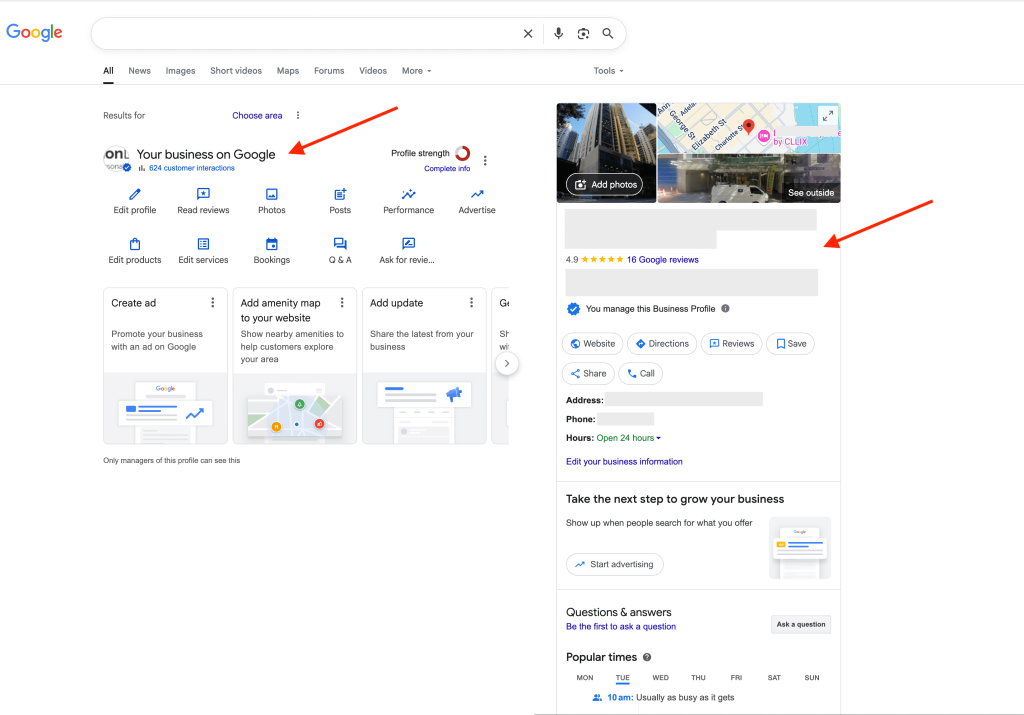
- Go to your Google Business Profile — you can find it by searching for your business name on Google or in Google Maps.
Make sure you’re signed into the Google account that manages your business profile.

- Click “Read reviews” on the panel. A pop-up will appear showing every review that’s been posted about your business.
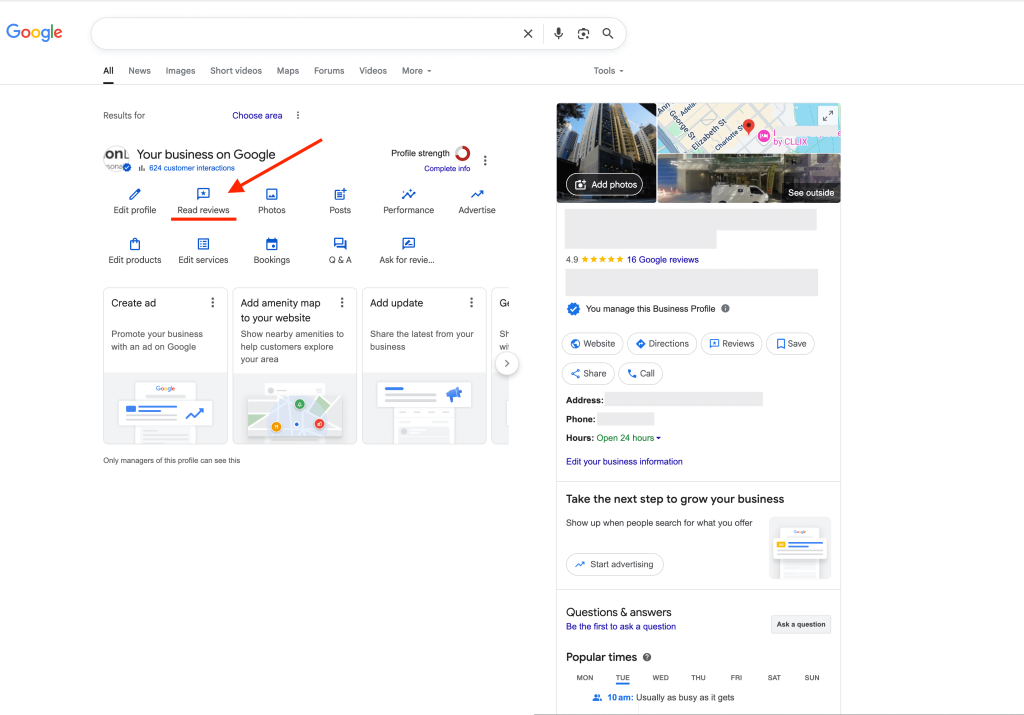
🔍 See something concerning while checking your reviews?
If a review looks spammy, fake, or inappropriate, follow our step-by-step guide: How to report a Google review.
If it’s a genuine review but a negative one, you can learn how to reply calmly and professionally in our article: How to respond to a negative Google review.
⚠️ Don’t see your business after signing in?
If you’re certain your business already has a Google Business Profile but it’s not appearing under your account, you may need to claim ownership of it.
Look for the “Own this business?” link on the profile and follow the prompts to request access or verify that you’re the business owner.
Once submitted, Google usually takes a few days to review and transfer ownership to your account if everything checks out.
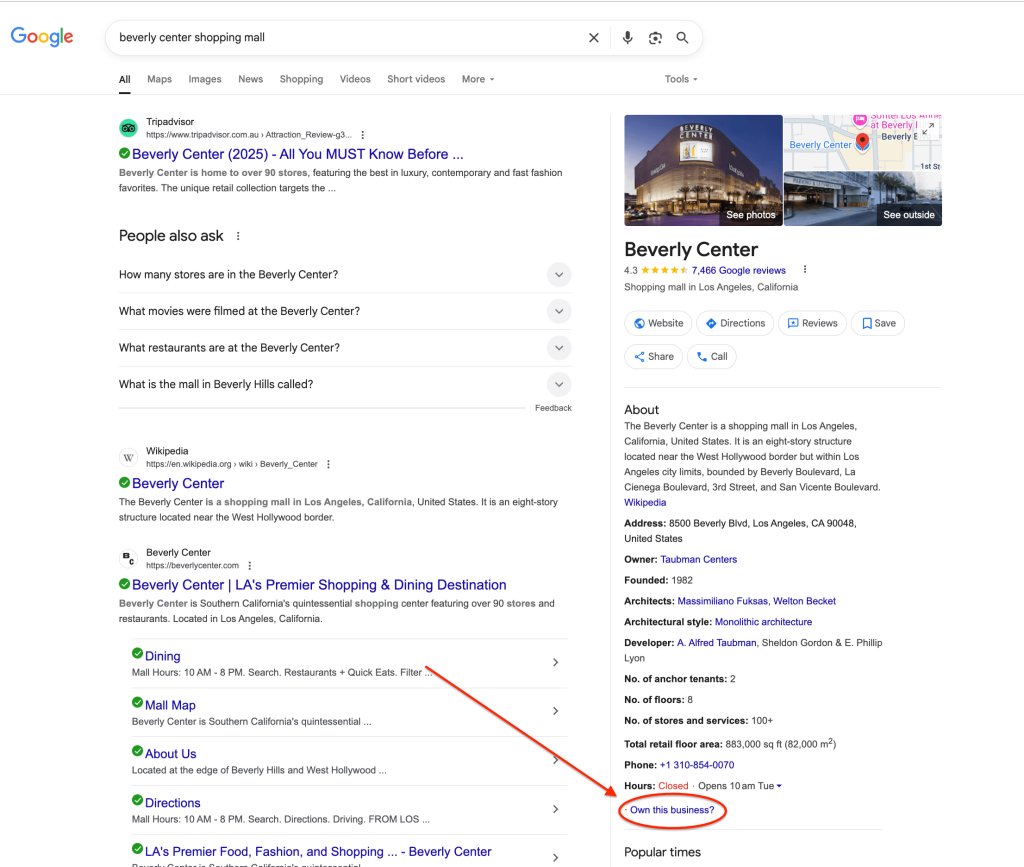
✏️ Tip: Having trouble locating your profile?
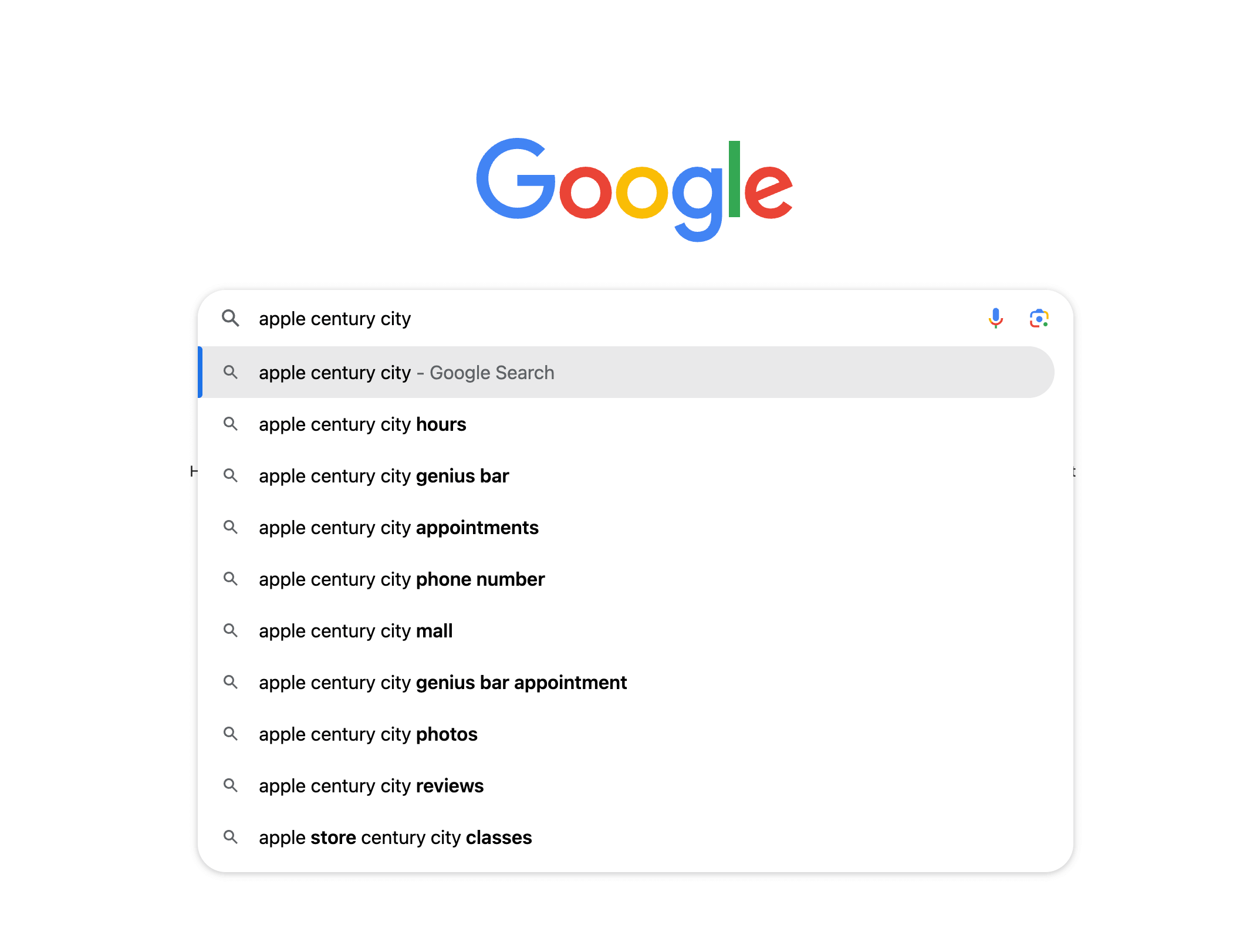
Try searching your business name directly on Google, and test a few variations. Adding your location, suburb, or service type can help narrow down the results.
Have an old Google Business Profile — or not sure if it’s still active?
If your Google Business Profile hasn’t been updated or used in a long time, Google may have hidden it or marked it for re-verification. When that happens, it often won’t appear in public search results.
If you’ve searched carefully and still can’t find your active profile, it’s best to set up a new Google Business Profile.
⚠️ Important: Before creating a new one, double-check that there isn’t already a live profile for your business. Google discourages duplicate listings and might flag or remove a new profile if an older one still exists.
Want to get more Google reviews for your business?
If you’d like more reviews on your Google Business Profile — without the awkward asks or constant follow-ups of customers — Get More Reviews can help.
It’s a simple, automated system that runs quietly in the background, sending review requests by SMS and email after each job or sale.
It does the follow-ups for you, helping you collect steady, genuine reviews over time — without any extra work from you.
👉 Start your 30-day free trial today and see how easy it is to grow your reviews automatically.