👉 Ever had a great experience at a café, shop, or local service and thought, “I should leave them a good review”—but weren’t quite sure how to? You’re not the only one. Google’s review process can be confusing the first time you try it.
From figuring out whether you need a Gmail address to wondering if you can leave feedback without signing in, there’s plenty of mixed information out there.
This quick guide will show you exactly how to review a business on Google — whether you’re on your computer or writing one straight from your phone.
We’ll take you through each step so the process feels simple and natural.
You’ll also find clear answers to common questions at the end, including:
✅ What are Google reviews, and where do they show up?
✅ Can you leave a Google review without a Google account?
✅ How to leave an anonymous Google review?
Key takeaways:
🔵 Learn how to leave a Google review on mobile or desktop
🔵 Follow clear, easy-to-understand steps
🔵 Get writing tips for leaving honest, helpful reviews
✏️ Note: You’ll need a Google (Gmail) account to post a review.
If you don’t already have one, you can set up a free Google account here.
Let’s get started and walk through exactly how to share your experience in just a few minutes.
Step 1: Find the business on Google
To start your review, you’ll first need to locate the business’s Google listing. This listing is known as a Google Business Profile (GBP) — it used to be called Google My Business (GMB).
Open Google and search for the business you want to review — whether that’s your local mechanic, a favourite café or a store you recently visited.
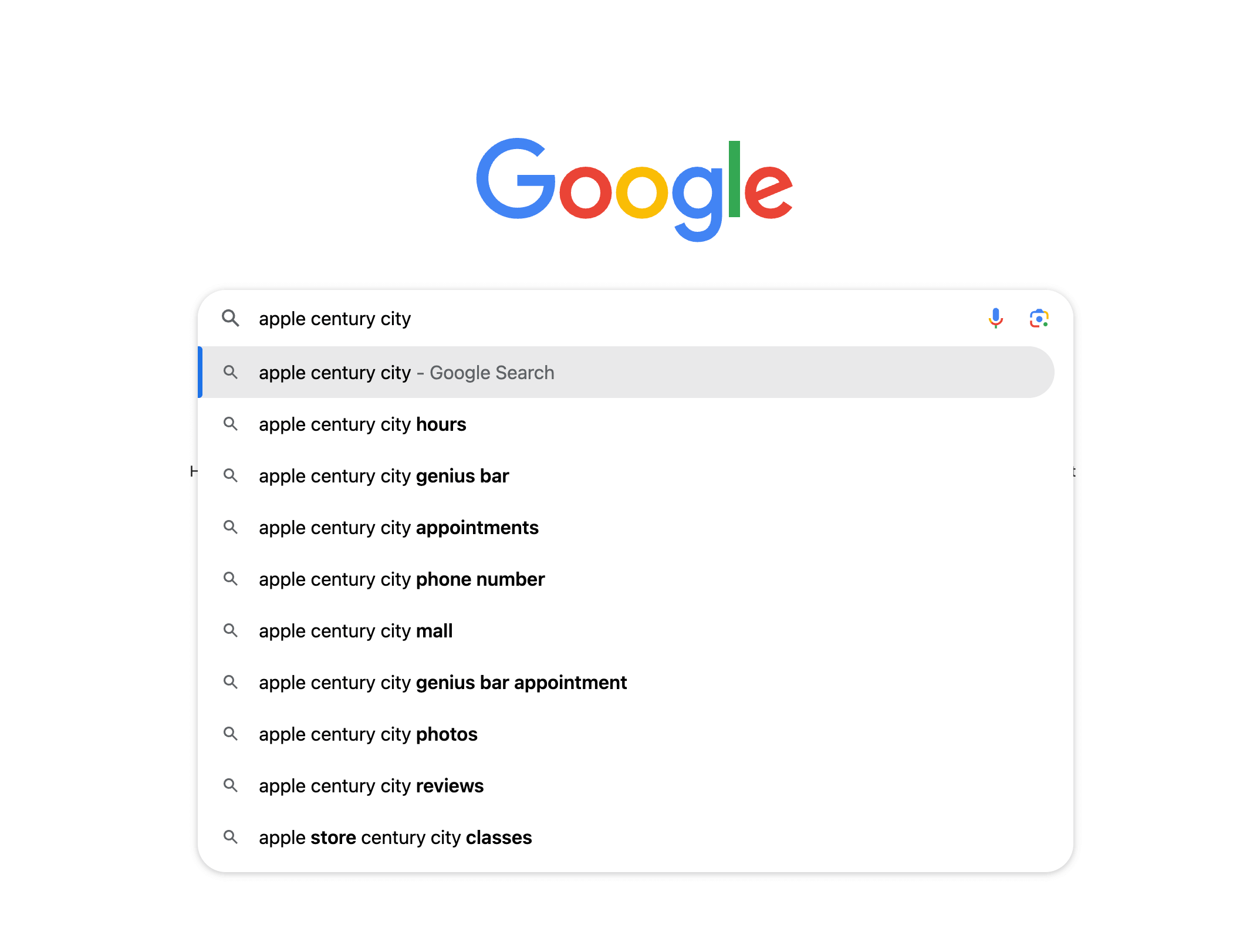
Sometimes the name shown on Google may differ slightly from what you know the business as.
If you can’t find it straight away, try searching different versions of the business name and include their suburb, city, or the type of service or product they offer.
🖥️ On desktop, Google Business Profiles usually appear on the right-hand side or at the top of the search results.
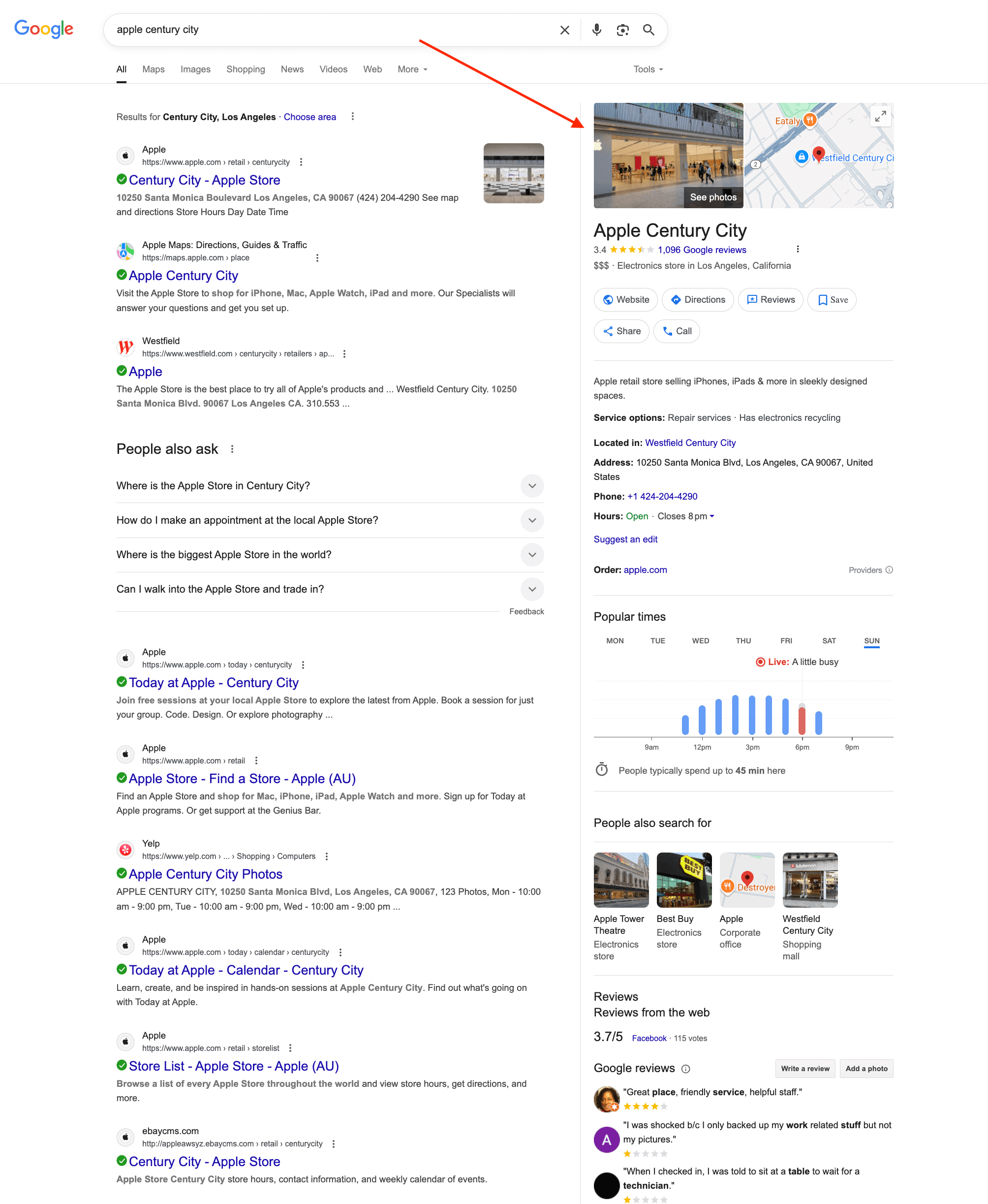
📱 On mobile, you’ll see the profile appear right at the top of the page once you search.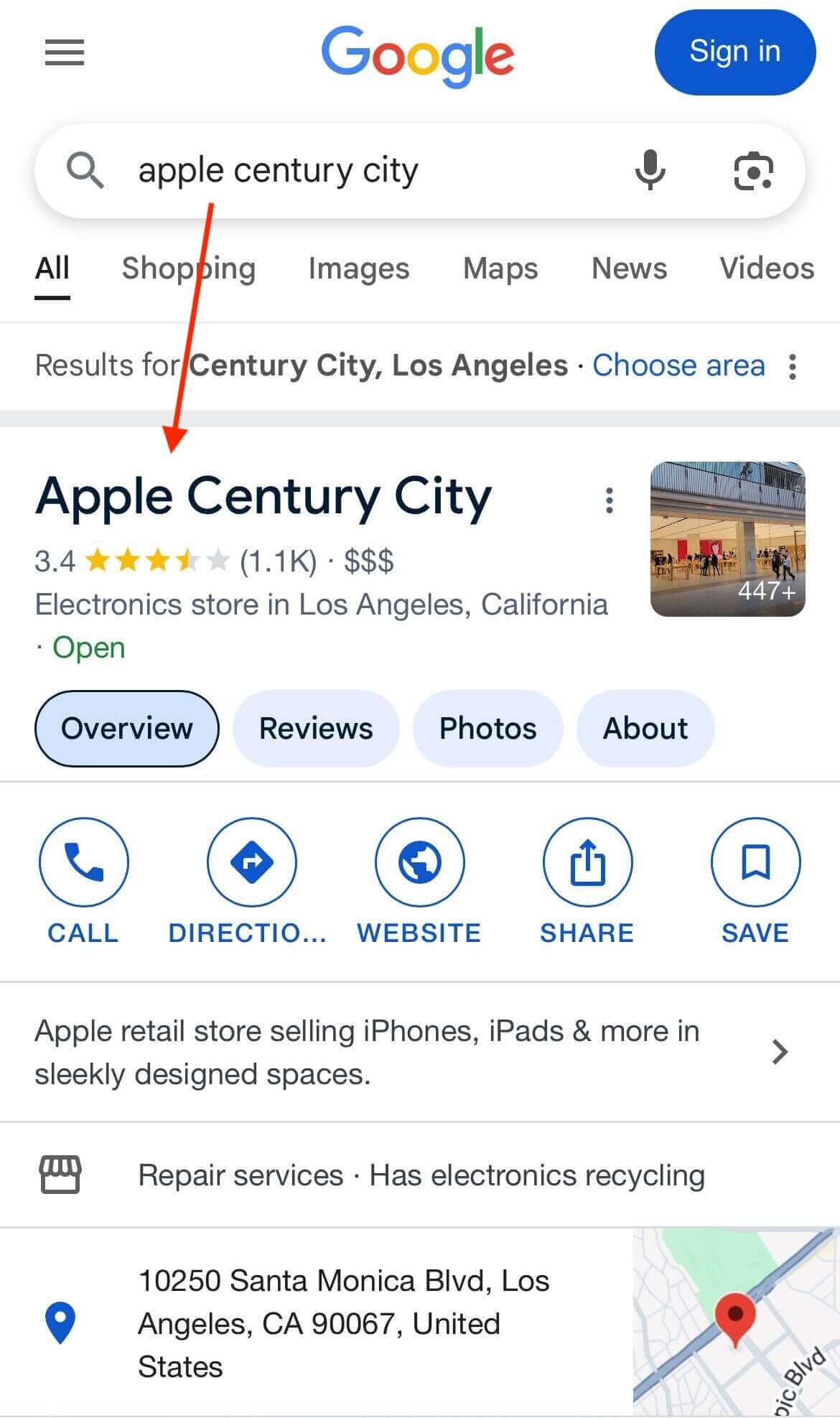
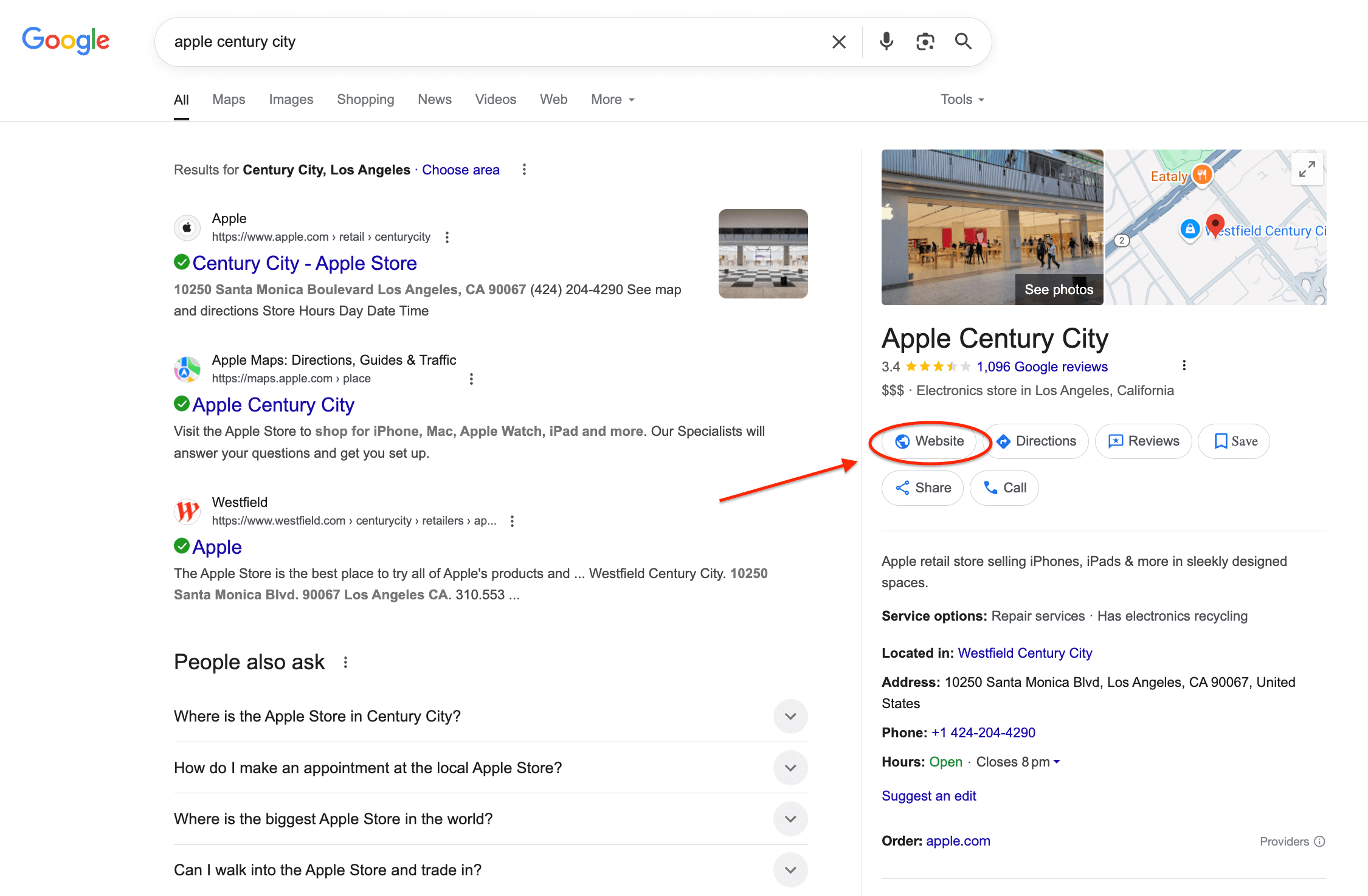
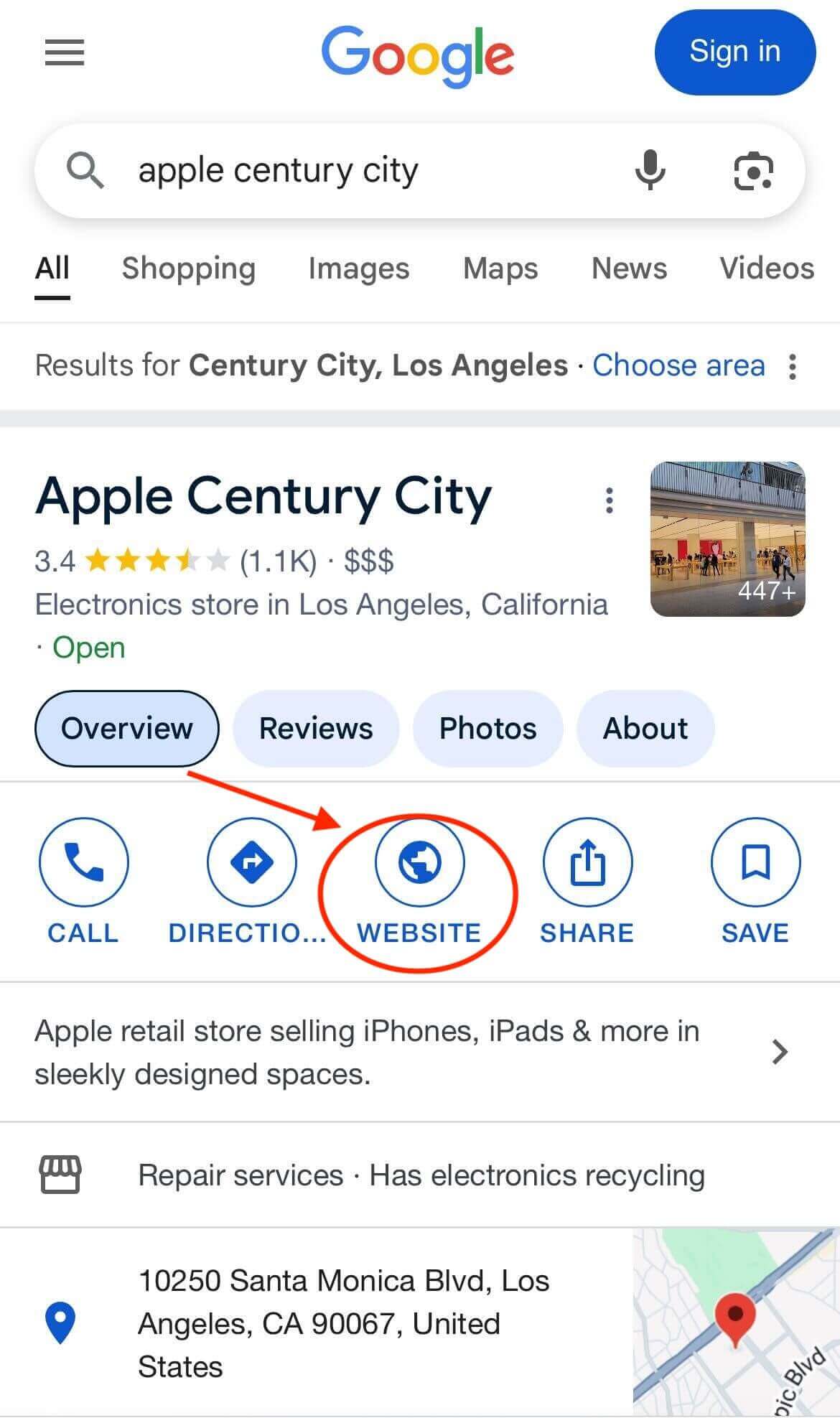
✏️ Tip: If you’re unsure whether you’ve found the correct listing, check the website linked to the profile.
Click the “Website” button (the one with the globe icon) in the Google Business Profile — this will open the website that’s connected to that listing.
It’s worth double-checking this before leaving your review to make sure it’s the exact business you interacted with.
🖥️ Desktop:
📱 Mobile:
Step 2: Find where to leave a review
Once you’ve confirmed it’s the right Google Business Profile, scroll to the part of the listing where reviews are shown.
🖥️ Desktop:
If you’re on a computer, scroll down until you reach the reviews section — it’s usually about halfway down the profile and shows a few of the most recent reviews from other customers.
Next to these, you’ll see a “Write a review” button. Click that button to start your own review.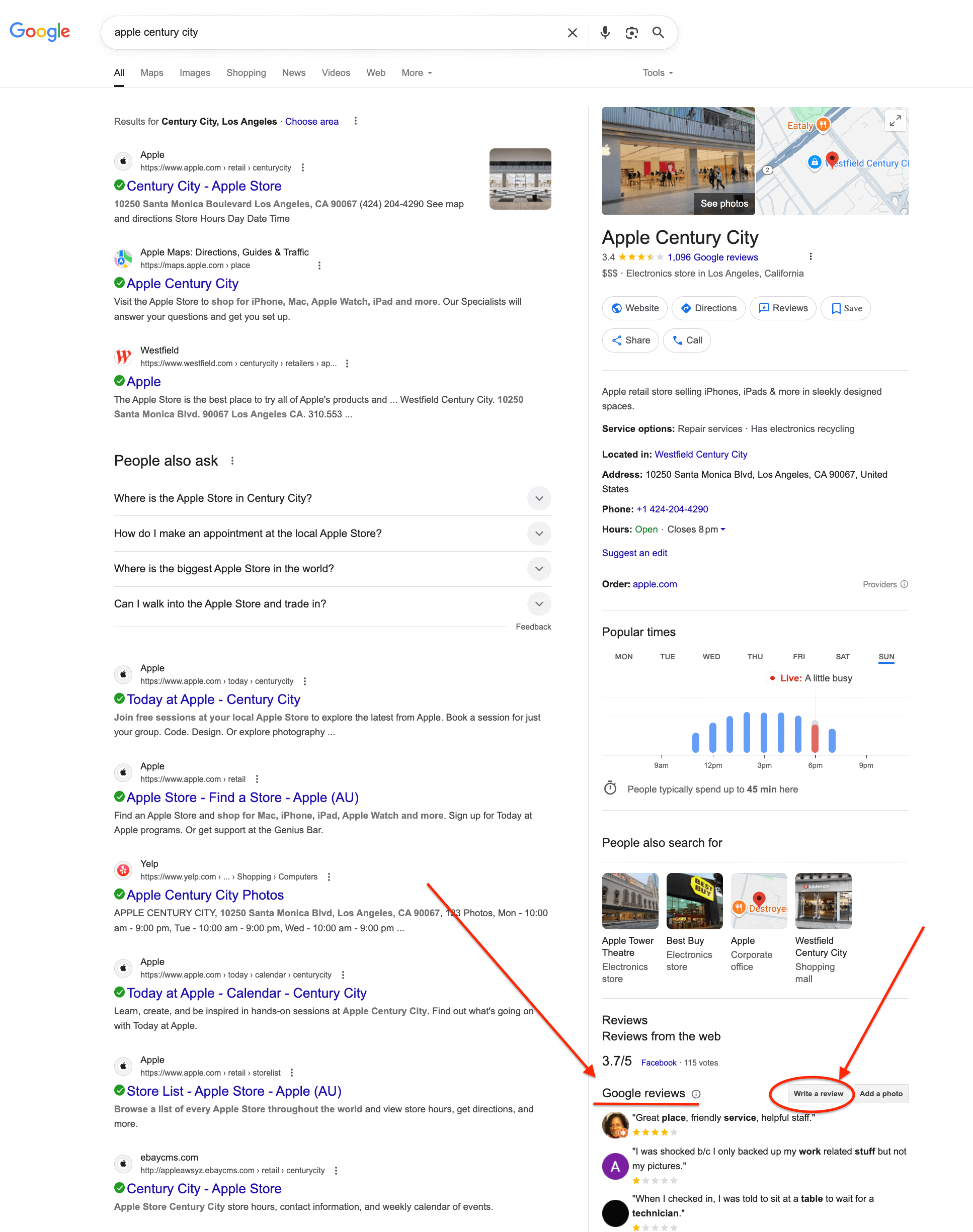 📱 Mobile:
On a phone, the review area appears a bit higher up in the listing. Tap into that section, and you’ll see the option to select your star rating to begin writing your review.
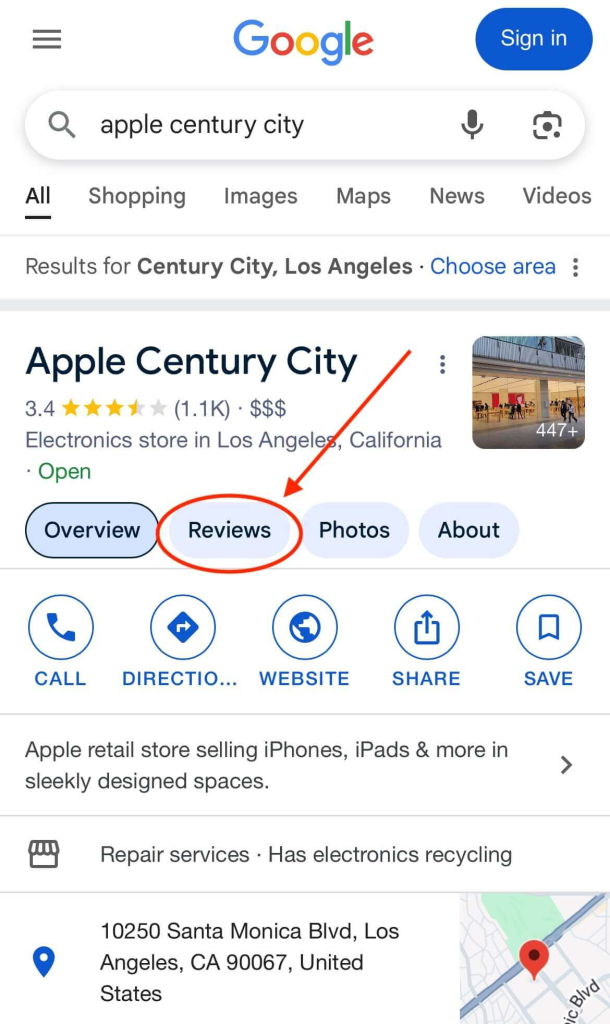
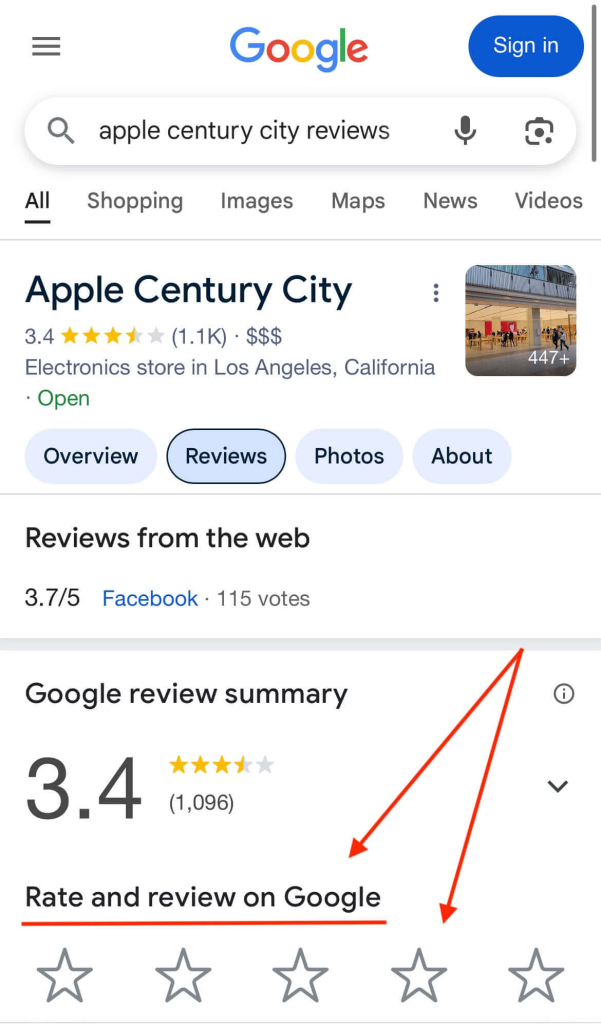
✏️ Note: Google occasionally changes the design of Business Profiles, so the layout might look slightly different. If you don’t see the same setup, just look for the “Reviews” section, the star rating, or the number of reviews — the button to write your review is normally right beside one of these.
Step 3: Start review (and log in if required)
After you click to start your review, a small pop-up window will open. What happens next depends on whether you’re already signed in to a Google account or not.
✅ If you’re already signed into a Google account
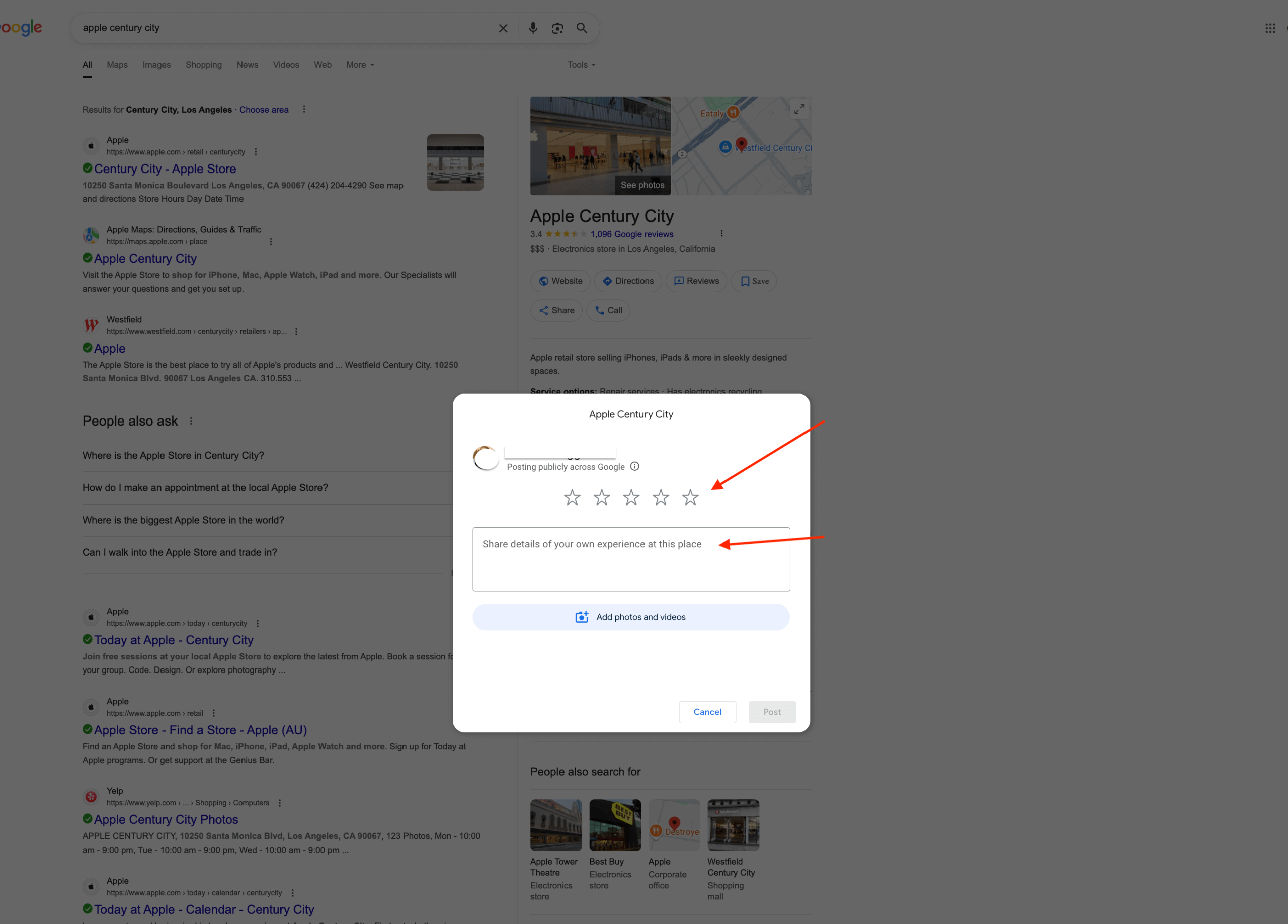
If already signed in, the pop-up will take you straight to the review form.
Here, you can:
- Select your star rating
- Write your review
- Add photos if you’d like (optional)
- Then hit Post to share it publicly
❌ If you’re not signed in yet
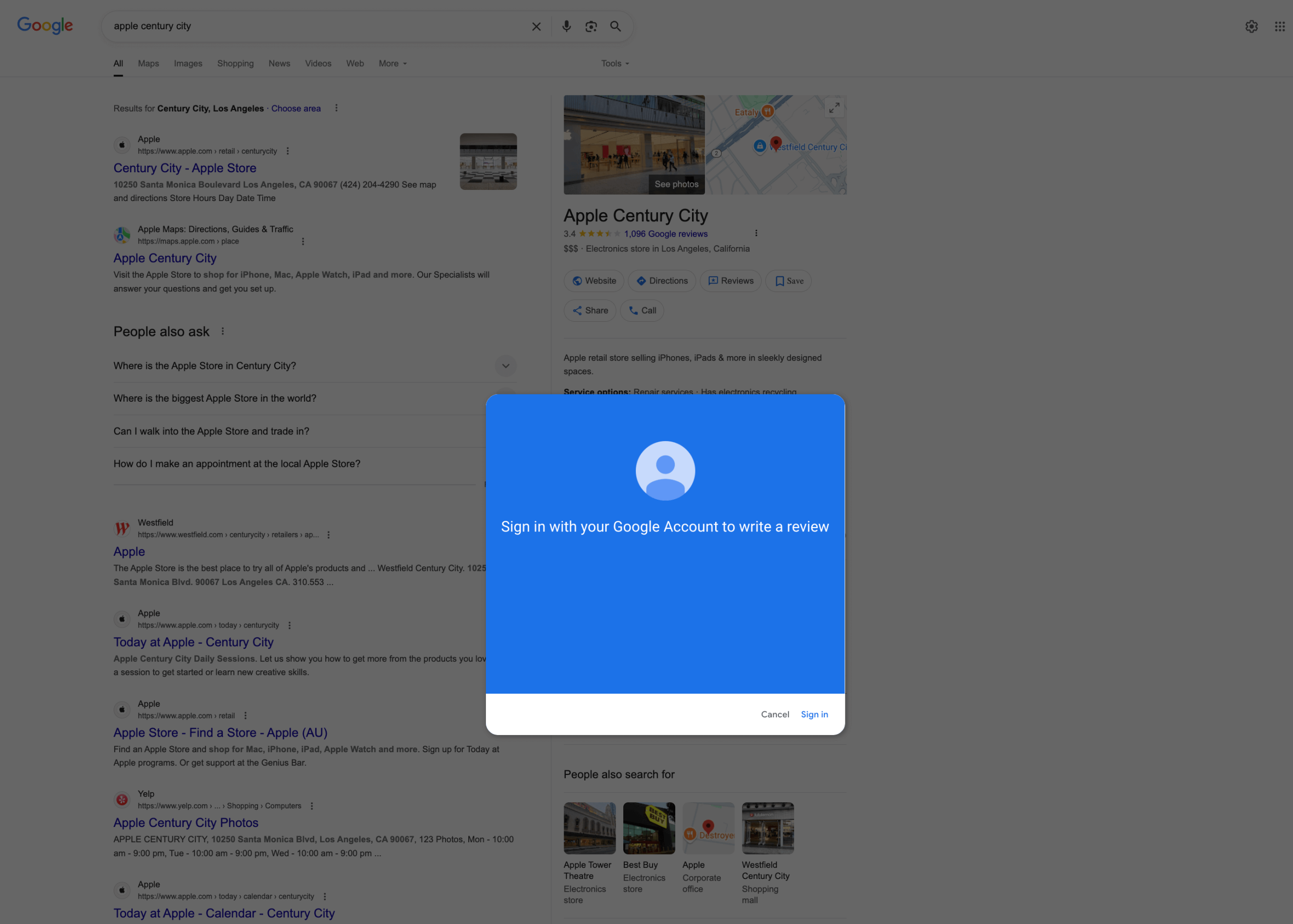
The pop-up will ask you to log into a Google account before you can continue.
Only people with a Google account can post reviews — it’s Google’s way of keeping feedback genuine and tied to real users
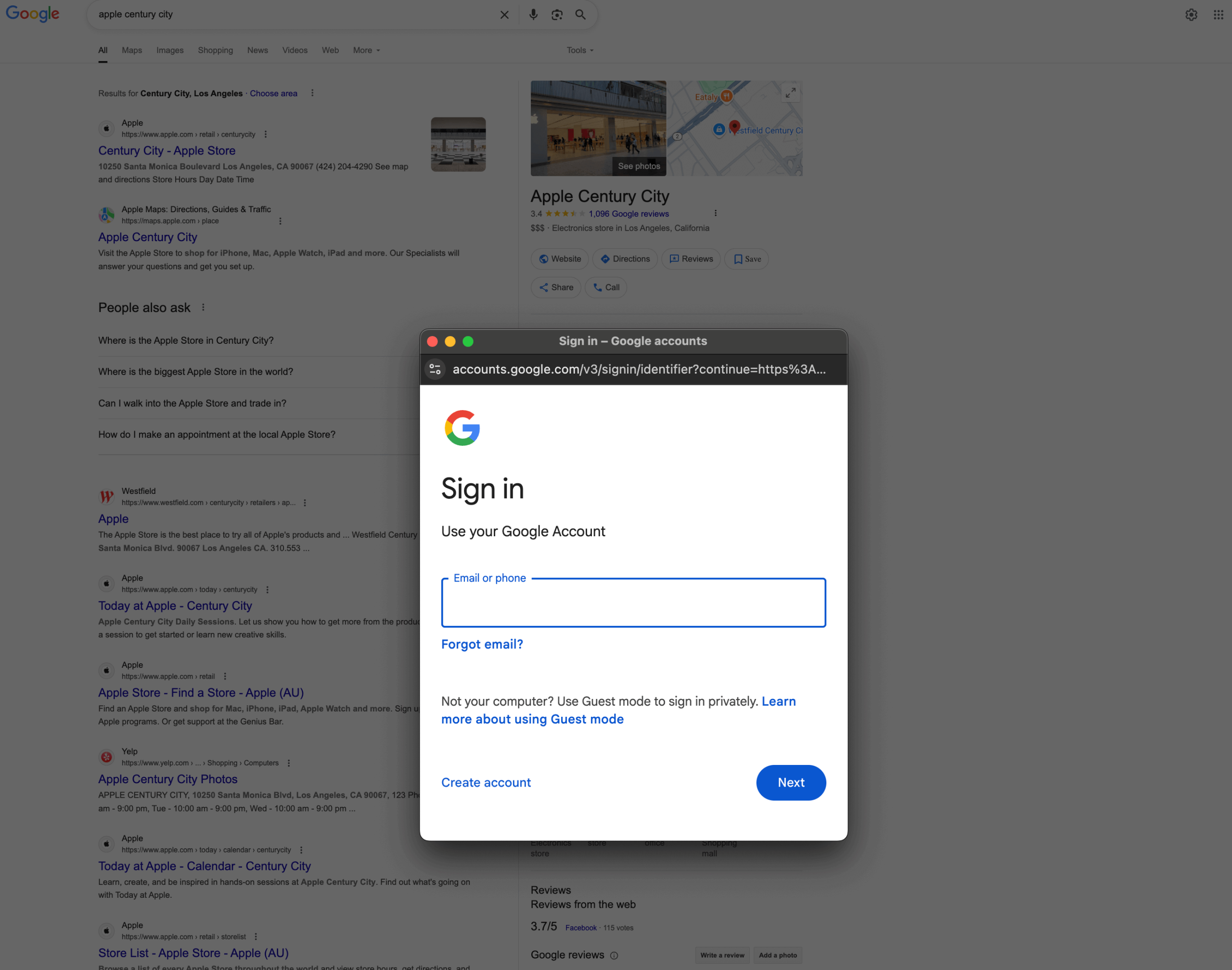
⚠️ Not sure if you have a Google account?
If you’ve ever used Gmail, YouTube, Google Docs, or any other Google product, you already have a Google account linked to that email.
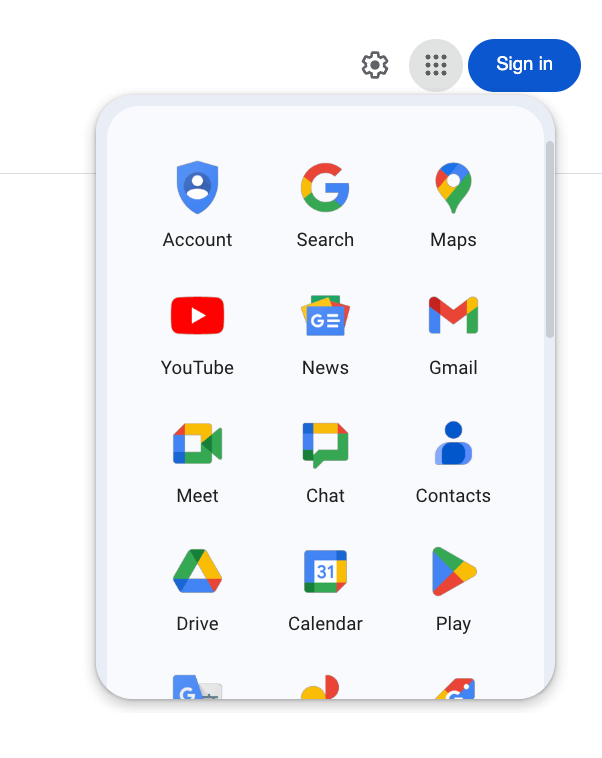
If your email address ends in @gmail.com, that’s a Google account too.
If you don’t have a Google account (or prefer not to use your main account), you can create a free Google account here in just a few minutes.
✏️ Note: Make sure you’re signed into the account you actually want the review to come from. Google shows your name and profile picture publicly beside every review you leave.
Once you’re logged in, the review form should appear automatically.
If it doesn’t, just refresh the page and click “Write a review” again to open it.
Step 4: Choose your rating
If you’re on a 🖥️ computer, the first thing you’ll see in the review box is the star rating.
Select how many stars best match your experience with the business:
⭐ 1 star = Very poor experience
⭐⭐ 2 stars = Below average
⭐⭐⭐ 3 stars = Neutral or okay
⭐⭐⭐⭐ 4 stars = Good overall
⭐⭐⭐⭐⭐ 5 stars = Excellent experience
📱 Mobile users:
If you’re leaving your review on a phone, you’ll have already chosen your star rating back in Step 2 — so you can skip this part and move straight into writing your review.
Step 5: Write your review 📝
Now it’s time to share your experience. Type your feedback into the text box — it doesn’t need to be long. Even a few clear sentences can be really useful to others. You might like to include things such as:
🔵 What service or product you used
🔵 How helpful or friendly the team was
🔵 What stood out to you — good or bad
🔵 Whether you’d recommend the business to someone else
You can also add photos (optional).
Photos are especially helpful for places like cafés, salons, or service-based businesses — they give others a better feel for what to expect.
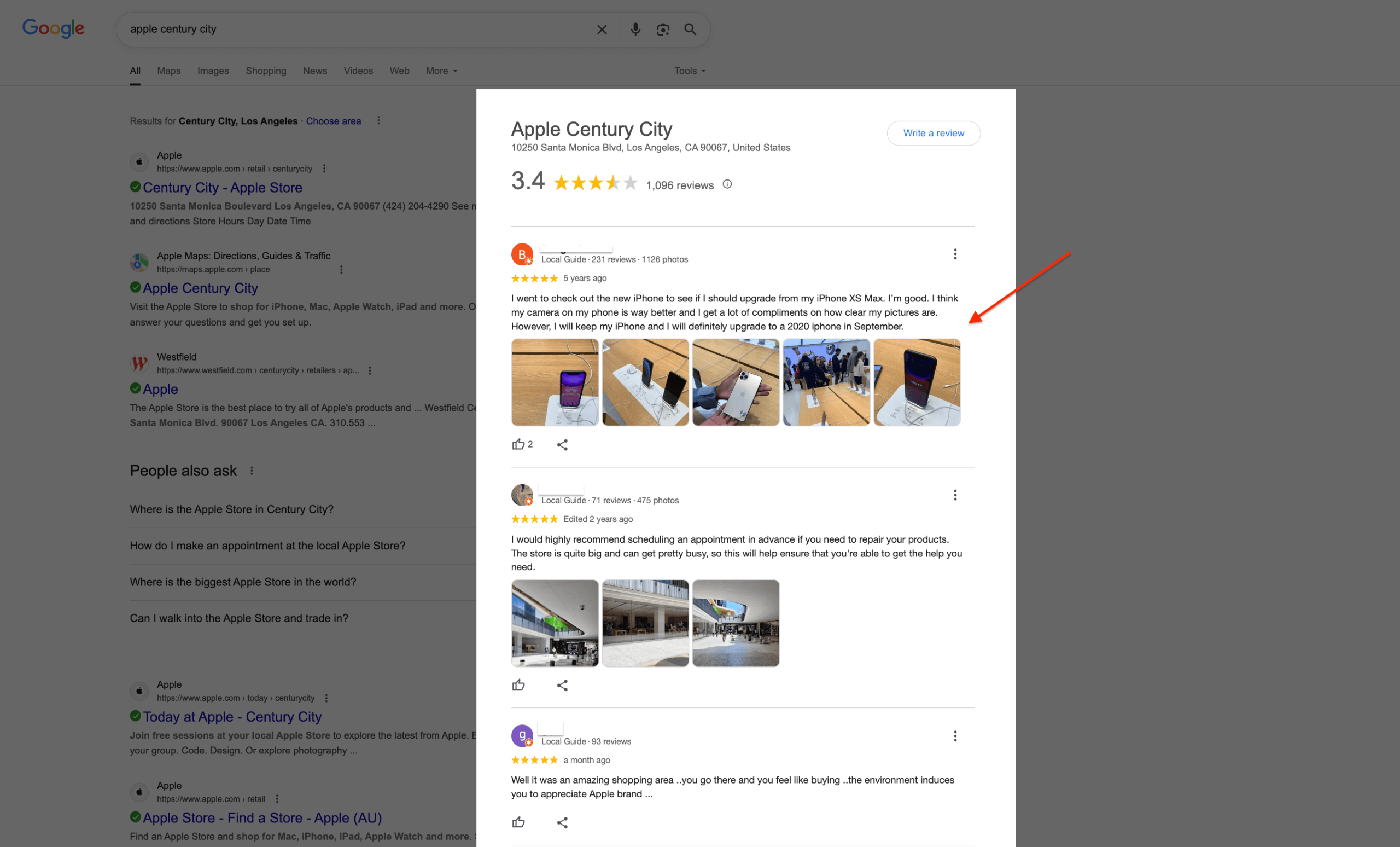
✏️ Note: Your review can be detailed or short — what matters most is that it’s honest and based on your real experience. Each review you leave helps the business improve and helps future customers make confident choices.
Step 5: Post your review
Once you’ve written your review and added any photos (if you chose to), you’re ready to post it.
Click the “Post” button at the bottom of the review window. The button might look slightly different on each device, but the process is the same whether you’re on desktop or mobile.
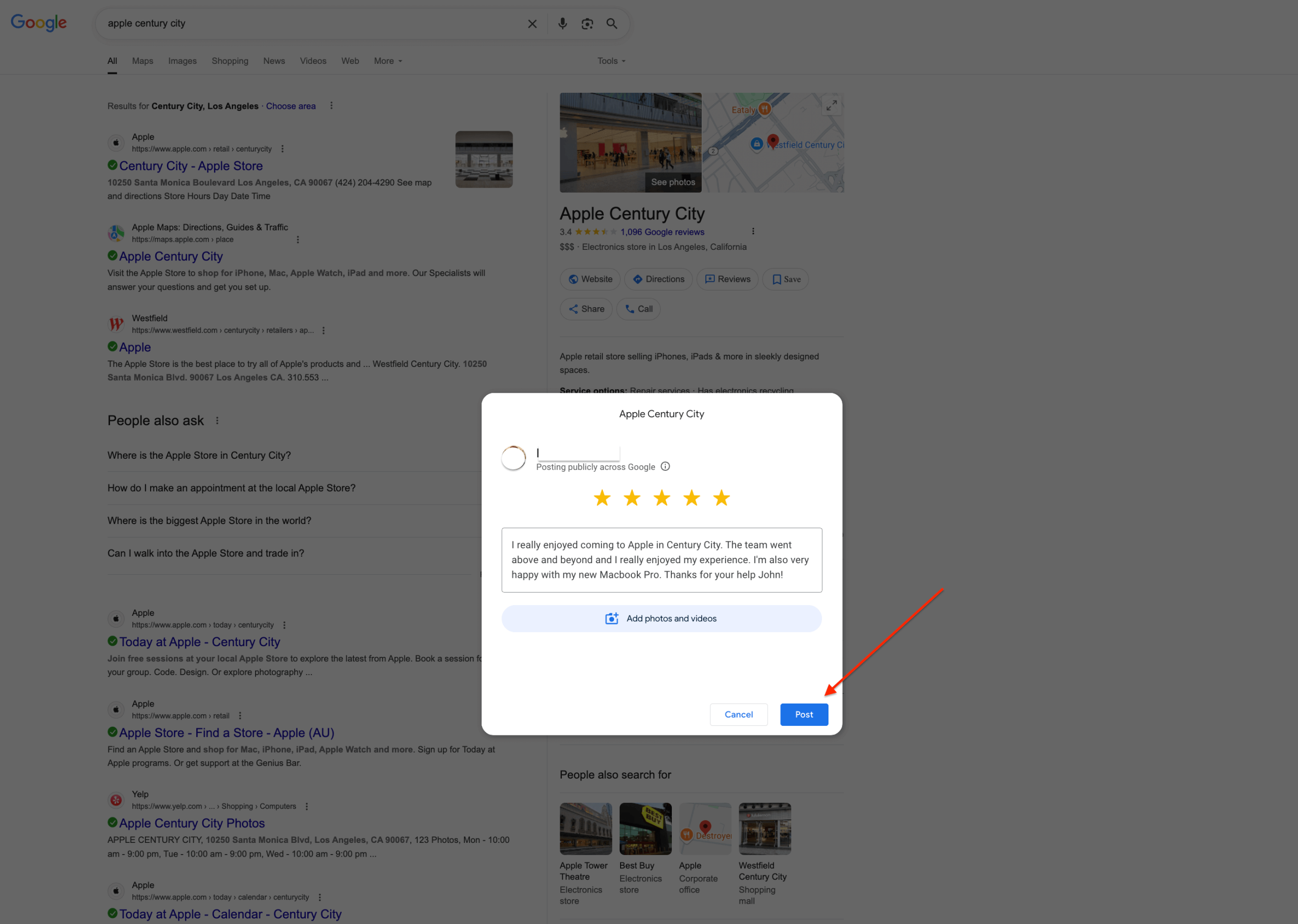
🎉 And that’s it — your review is now published!
It will appear publicly on the business’s Google Business Profile, usually within a few seconds. In some cases, it might take a day or two before it shows up.
If you ever want to edit or delete your review later, you can do this anytime in the “Your contributions” section of your Google account.
(We cover exactly how to find all your Google reviews in our other post: How to find your Google reviews.)
Leaving a Google review only takes a few minutes, but it makes a real difference 🫱🏻🫲🏼
You’re not just helping the business — you’re also helping other people make confident, informed choices.
FAQs about leaving a Google review
What are Google reviews?
Google reviews are public comments written by customers on a business’s Google Business Profile (GBP). They help others understand what real experiences with that business are like, and they show up alongside the business’s overall Google star rating.
If you’ve ever searched for a business on Google and noticed stars or customer comments next to their name or contact details — those are their Google reviews.
Can you leave a Google review without a Google account?
No, you can’t. To post a review, you must be logged into a Google account — that includes Gmail addresses or any other email registered as a Google account.
Without one, you won’t see or be able to open the review form.
Google does this to prevent spam and fake feedback.
If anyone could leave a review without signing in, reviews would quickly lose their credibility.
By requiring users to log in (and verify their account when creating it), Google helps ensure reviews come from real people with genuine experiences.
We cover how to check whether you already have a Google account back in Step 3 of this guide.
How to leave an anonymous Google review?
Technically, Google doesn’t allow fully anonymous reviews.
Every review is linked to the Google account you’re signed into at the time, which means your name and profile picture will appear beside it.
Some people try to stay anonymous by creating a new Google account with a nickname or generic image — but it’s not recommended.
Google encourages transparency and may remove reviews that appear fake or suspicious.
Anonymous-looking reviews are also less trusted by other customers and are often ignored by businesses.
Plus, staying anonymous makes it impossible for a business to reach out or respond if they want to fix an issue or thank you for your feedback.
So while you can technically use a secondary or less personal account, Google reviews are designed to come from real, verifiable profiles — because genuine reviews carry far more weight and credibility than ones that look hidden or anonymous.